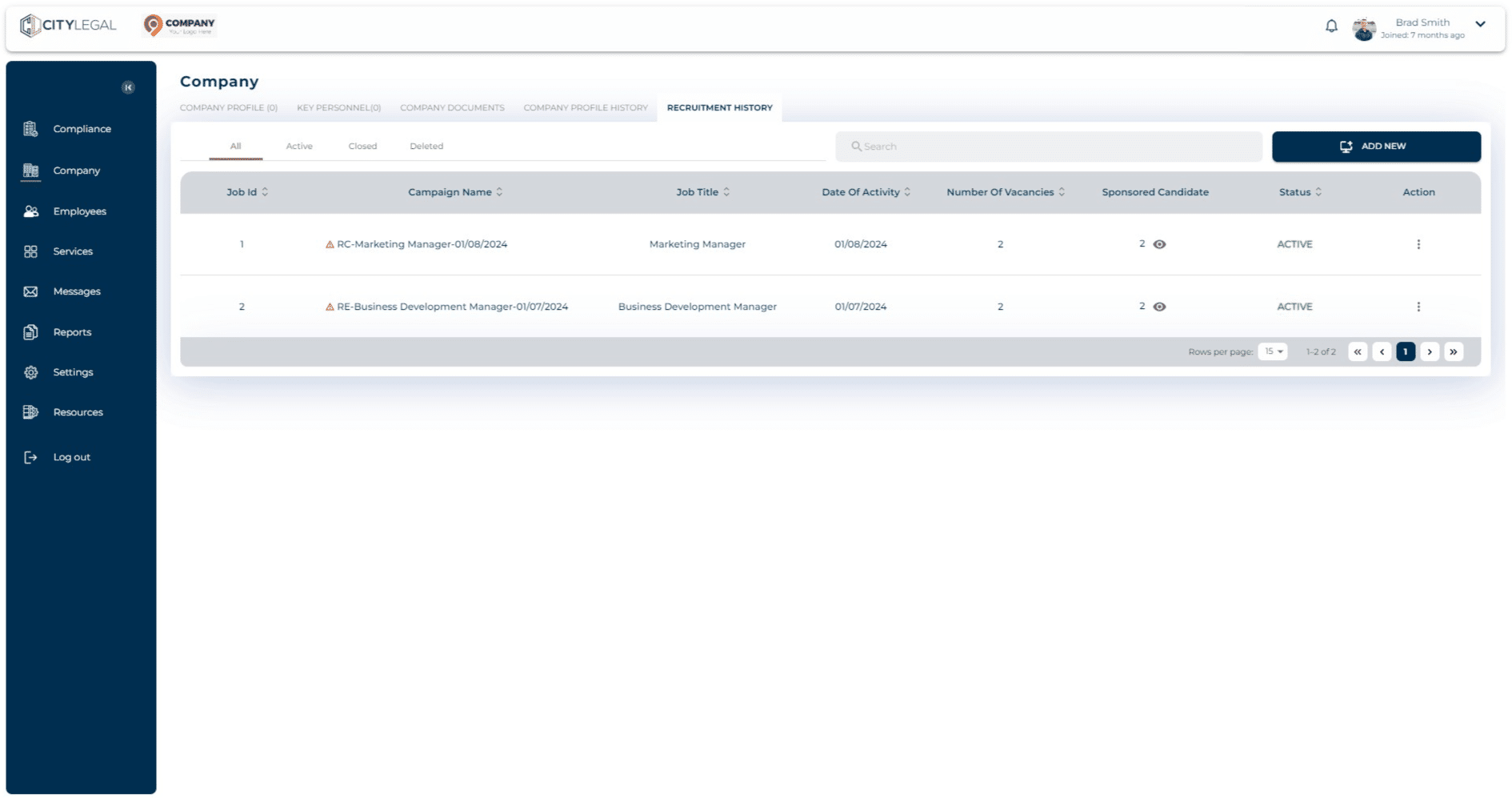
Creating same recruitment campaign for multiple employees
Go to 'Company' and click on "Recruitment History".
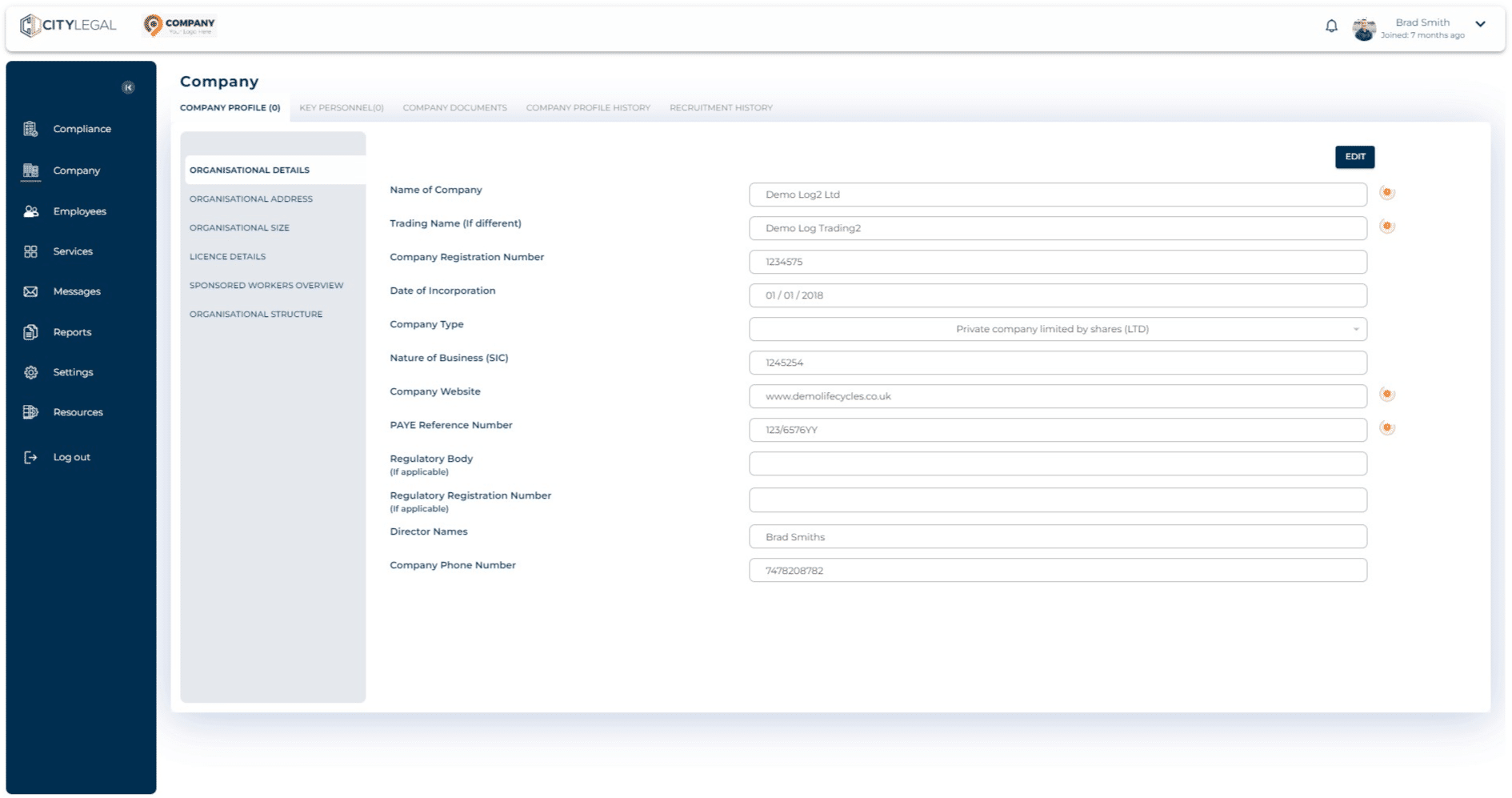

Click on 'Add New'.
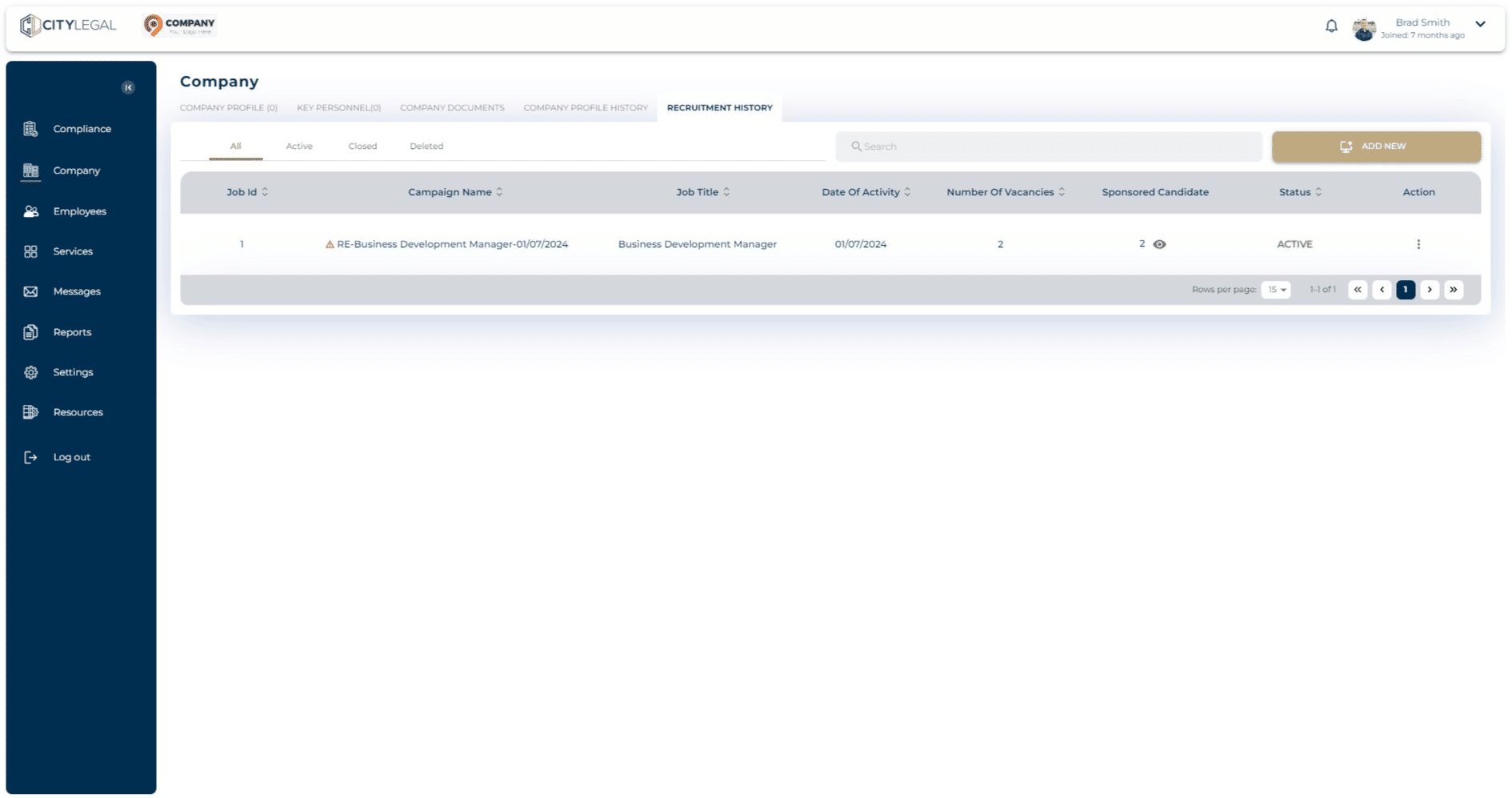
Select 'Recruitment Campaign' and click 'Next'.
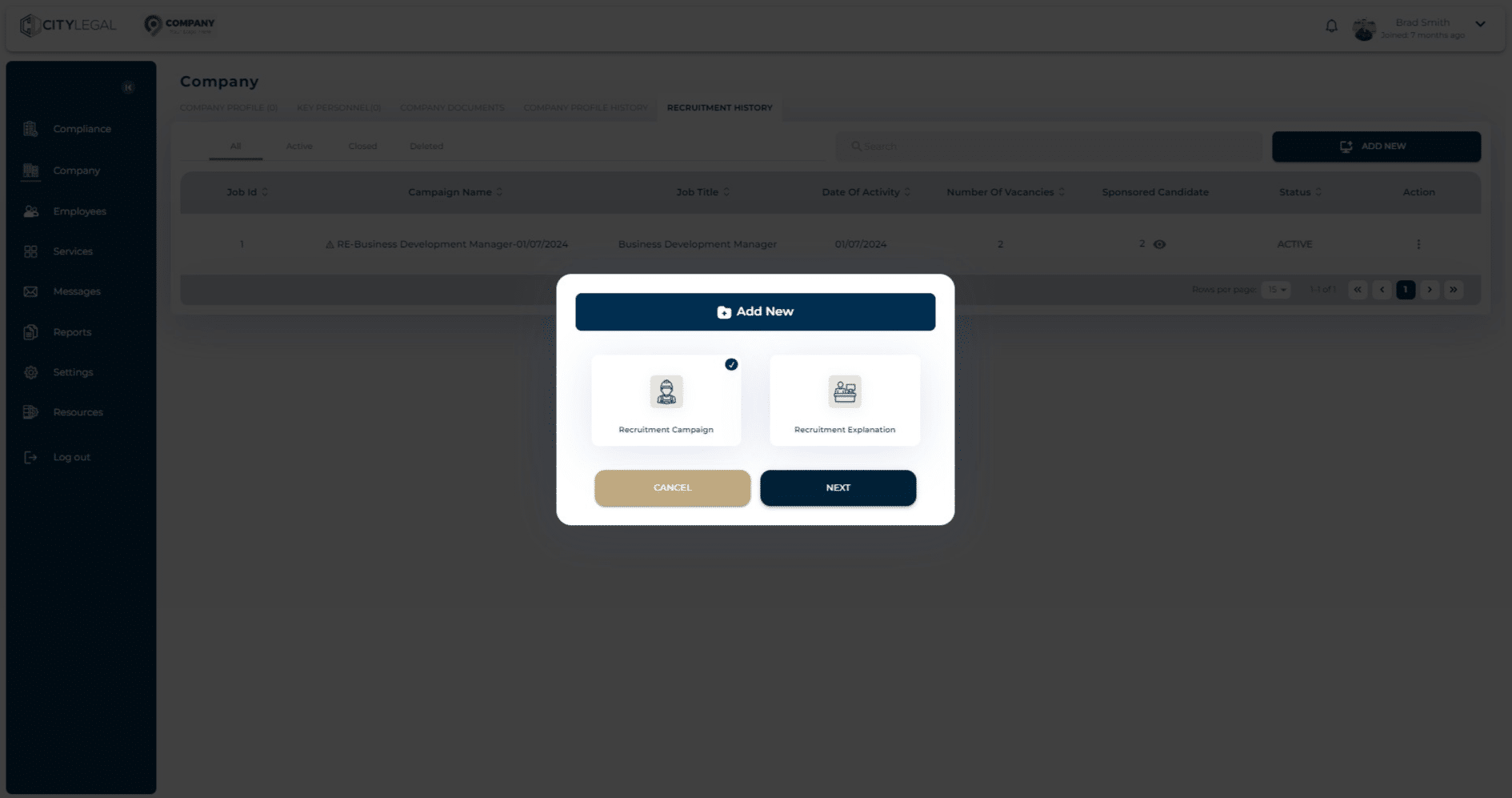
Add the Job Title and number of Vacancies here.
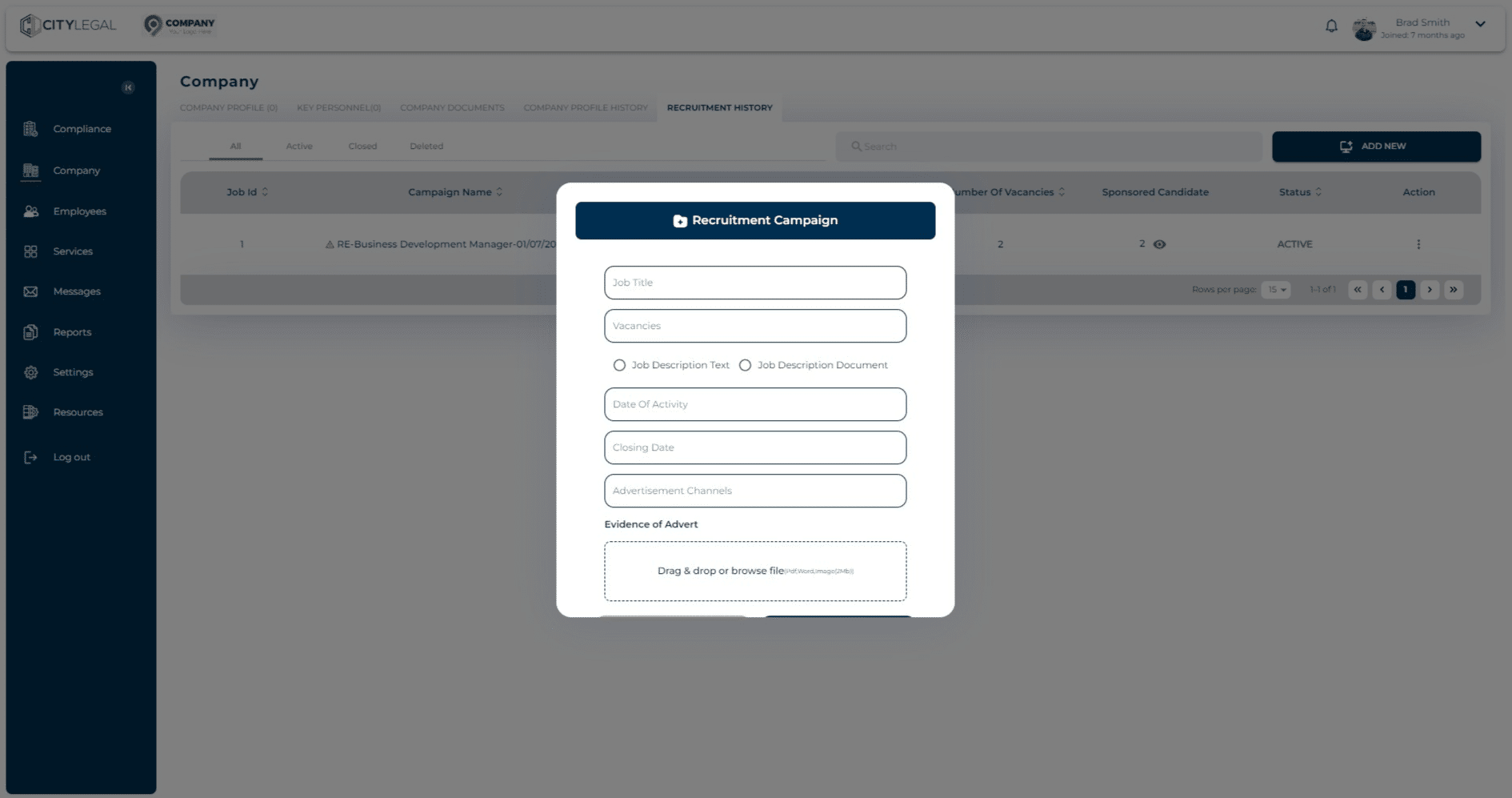
Click on "Job Description Text"
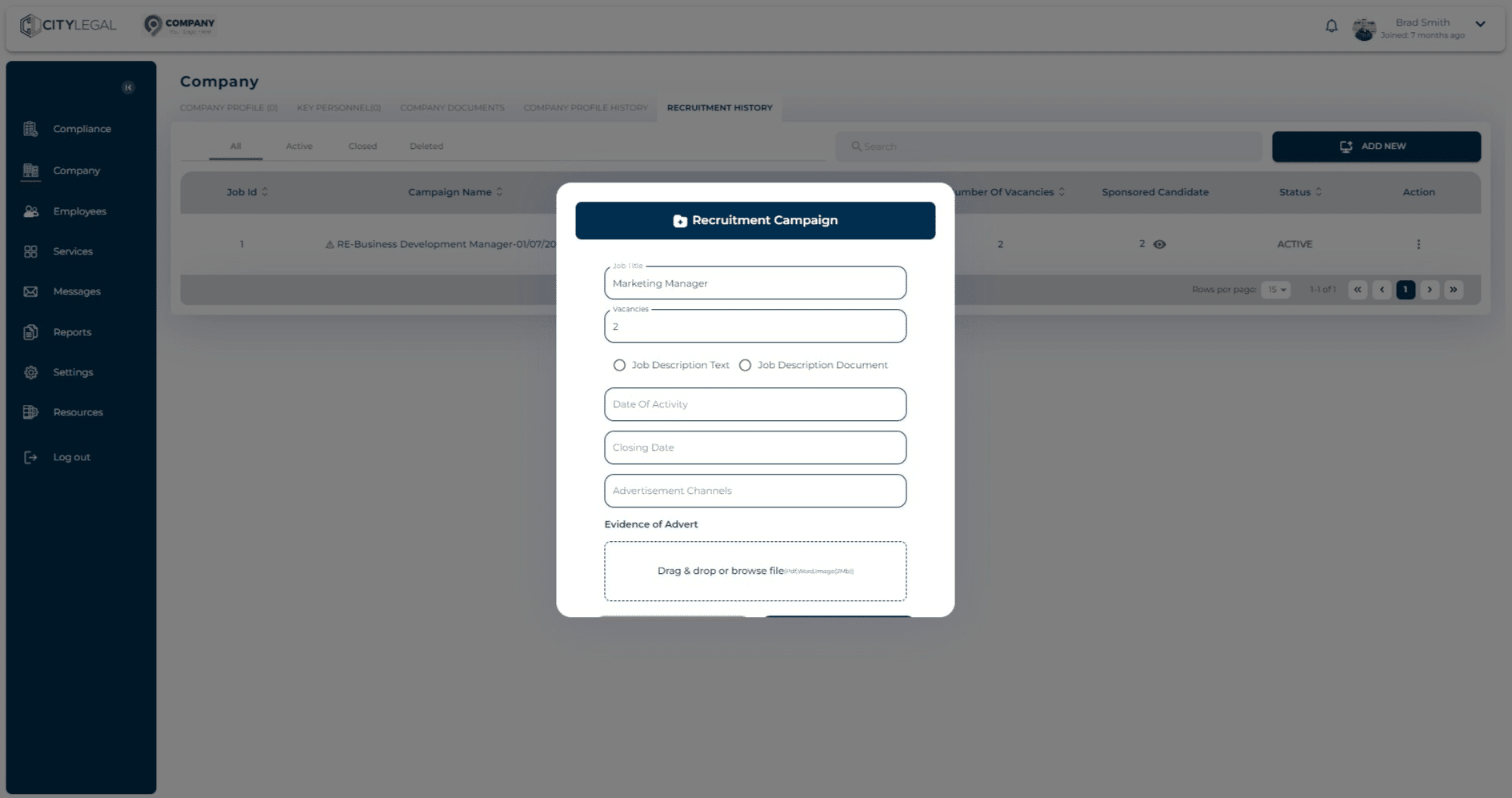
This option gives you a description field where you can put the JD in text for the job role.
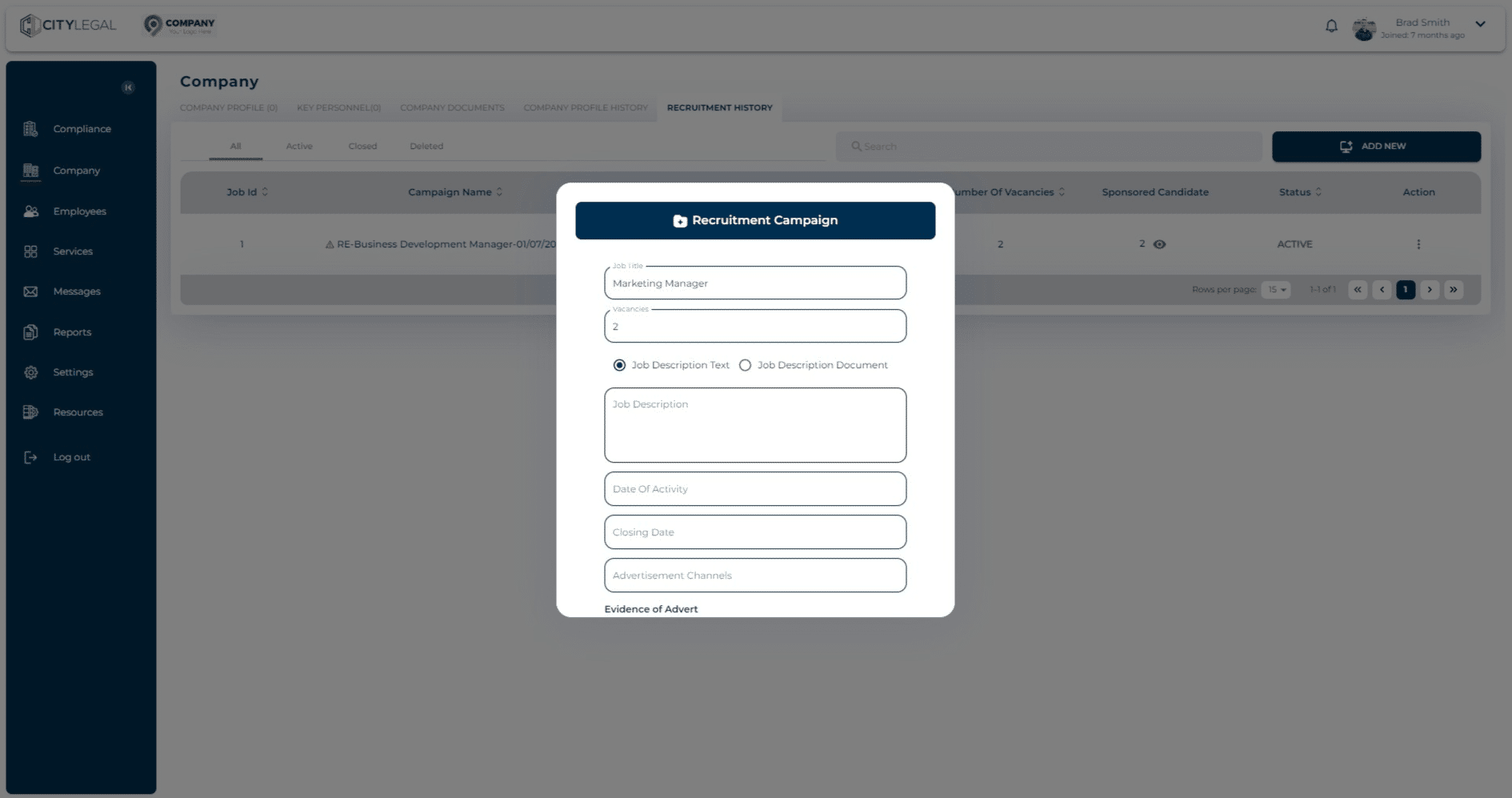
Alternatively, there is an option to attach the JD file if you have it. This lets you drag and drop the JD file (PDF, Word, Image) for the Recruitment Campaign.
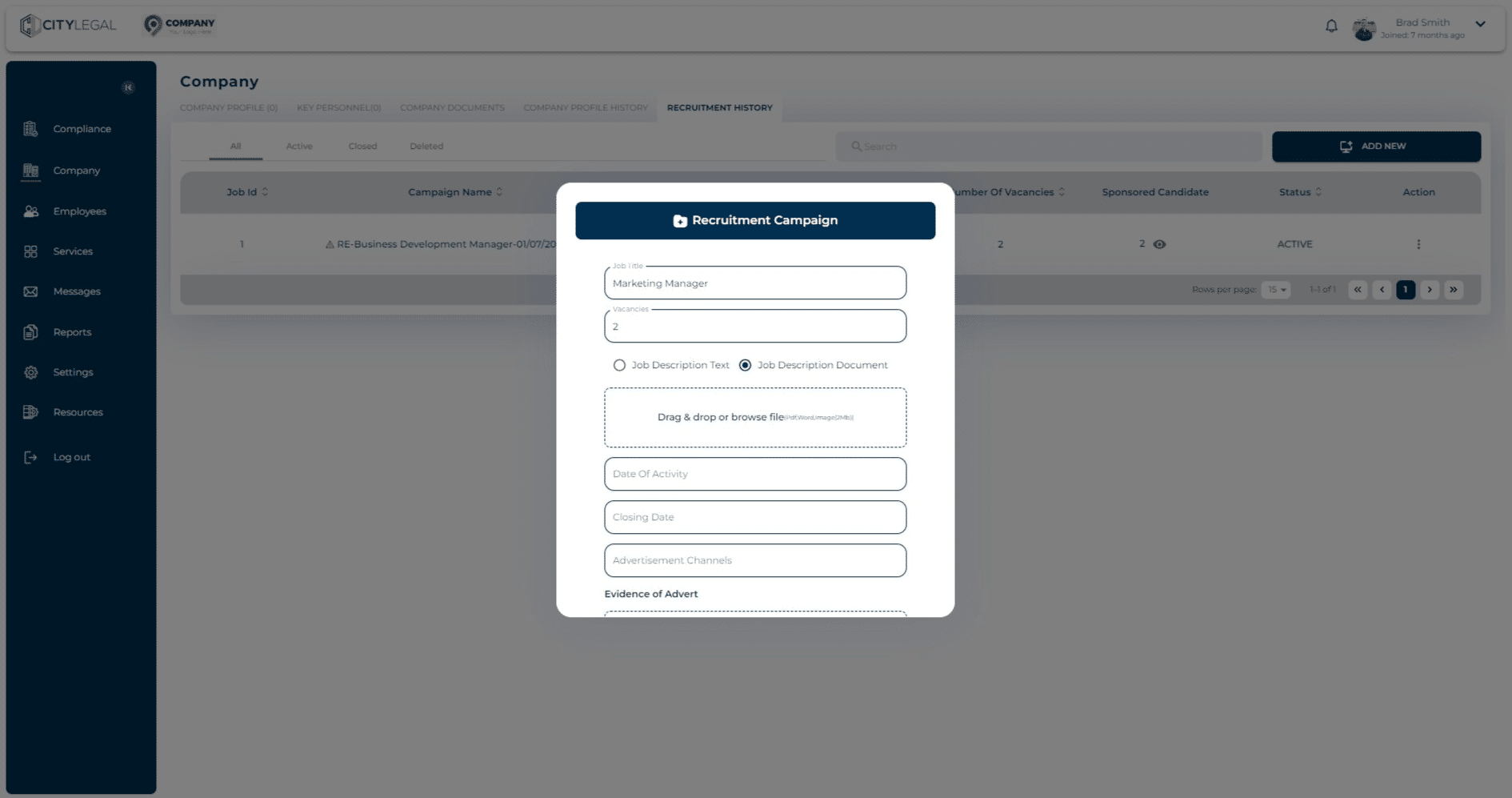
Enter the start date and end date of the recruitment activity from the calendar option.
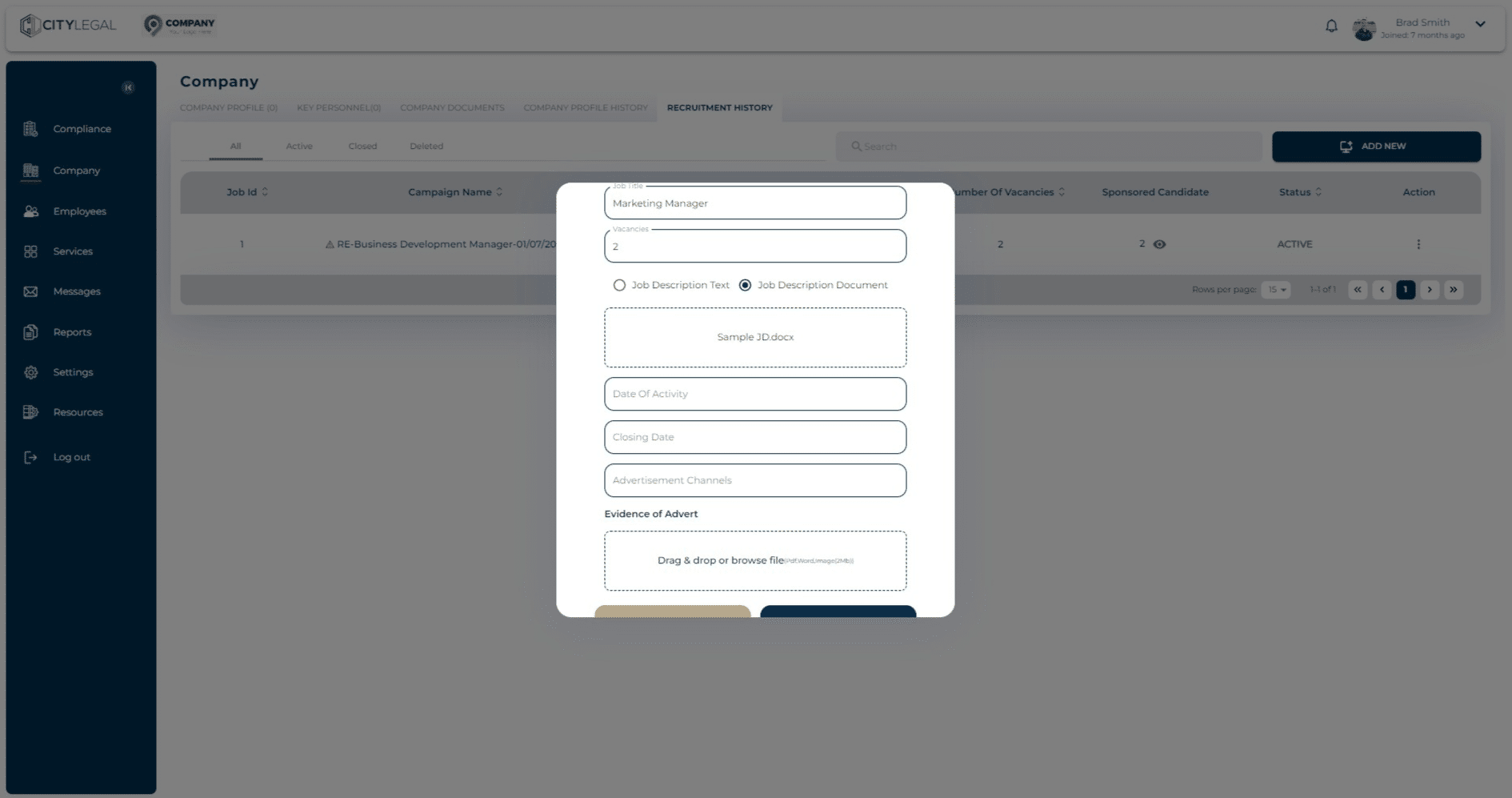
Put all the channels that the job was advertised on. For example, Indeed, Reed, etc. You can also drop evidence of ads for the record.
Details of any advertisements you placed including:
• a screenshot, printout or photocopy of the advert, or a record of the text of the advert; and • information about where the job was advertised (for example, website address), and for how long
Note: there is no specified minimum number of adverts you must place, or prescribed method of advertising. Where you have placed more than one advert, we recommend you retain evidence of all adverts placed.
• A record of the number of people who applied for the job, and the number of people shortlisted for interview or for other stages of the recruitment process.
At least one other item of evidence or information which shows the process you used to identify the most suitable candidate (see Note below) – examples include but are not limited to:
• a copy or summary of the interview notes for the successful candidate • a list of common interview questions used for all candidates as part of your selection process • brief notes on why the successful candidate was selected and why other candidates were rejected • information about any scoring or grading process you used to identify the successful candidate • any other relevant information or evidence
Note: you do not have to retain application forms, CVs, interview notes or any other personal data relating to unsuccessful candidates.
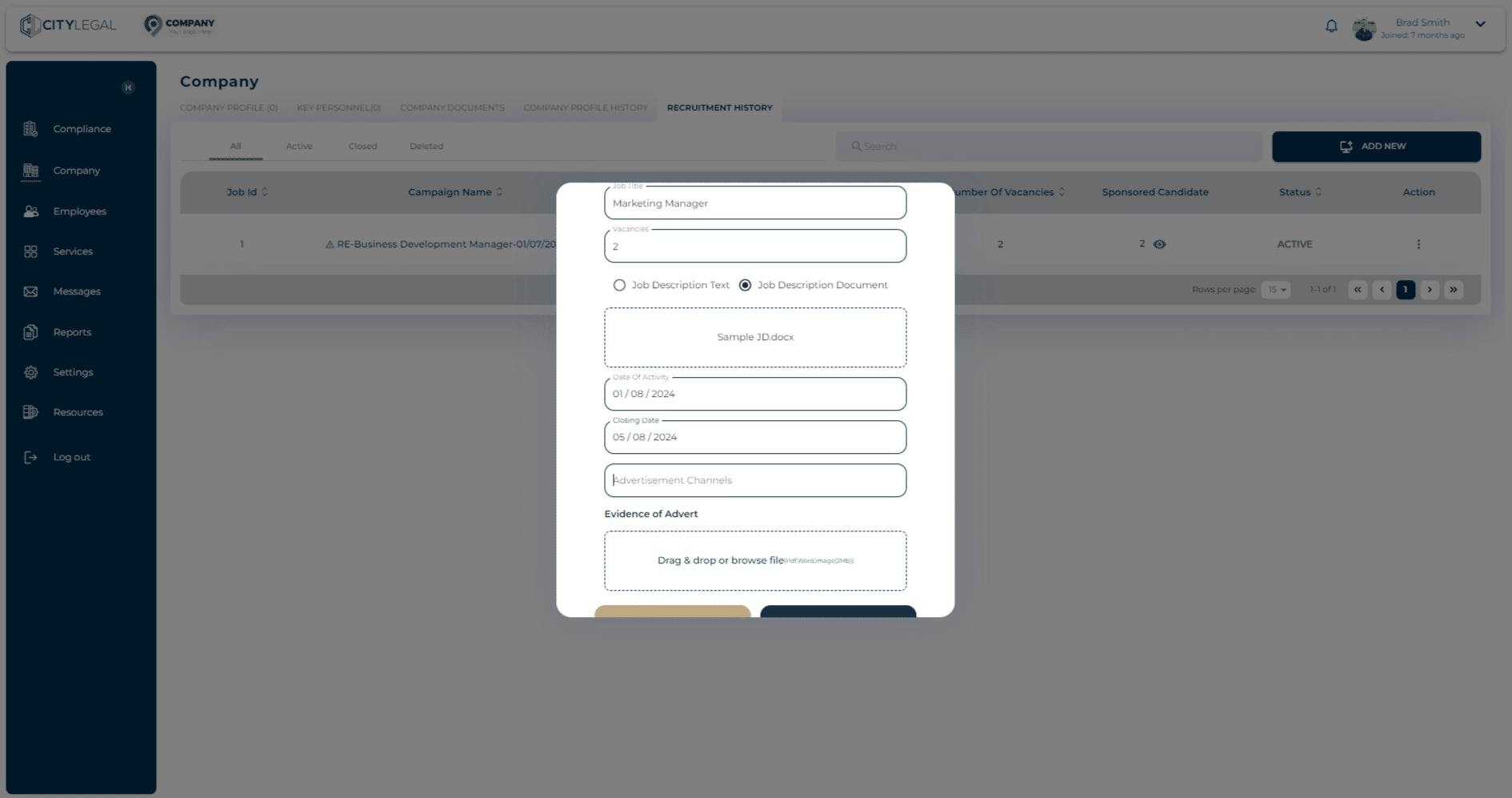
Click on "submit" after all the recruitment campaign information is added.
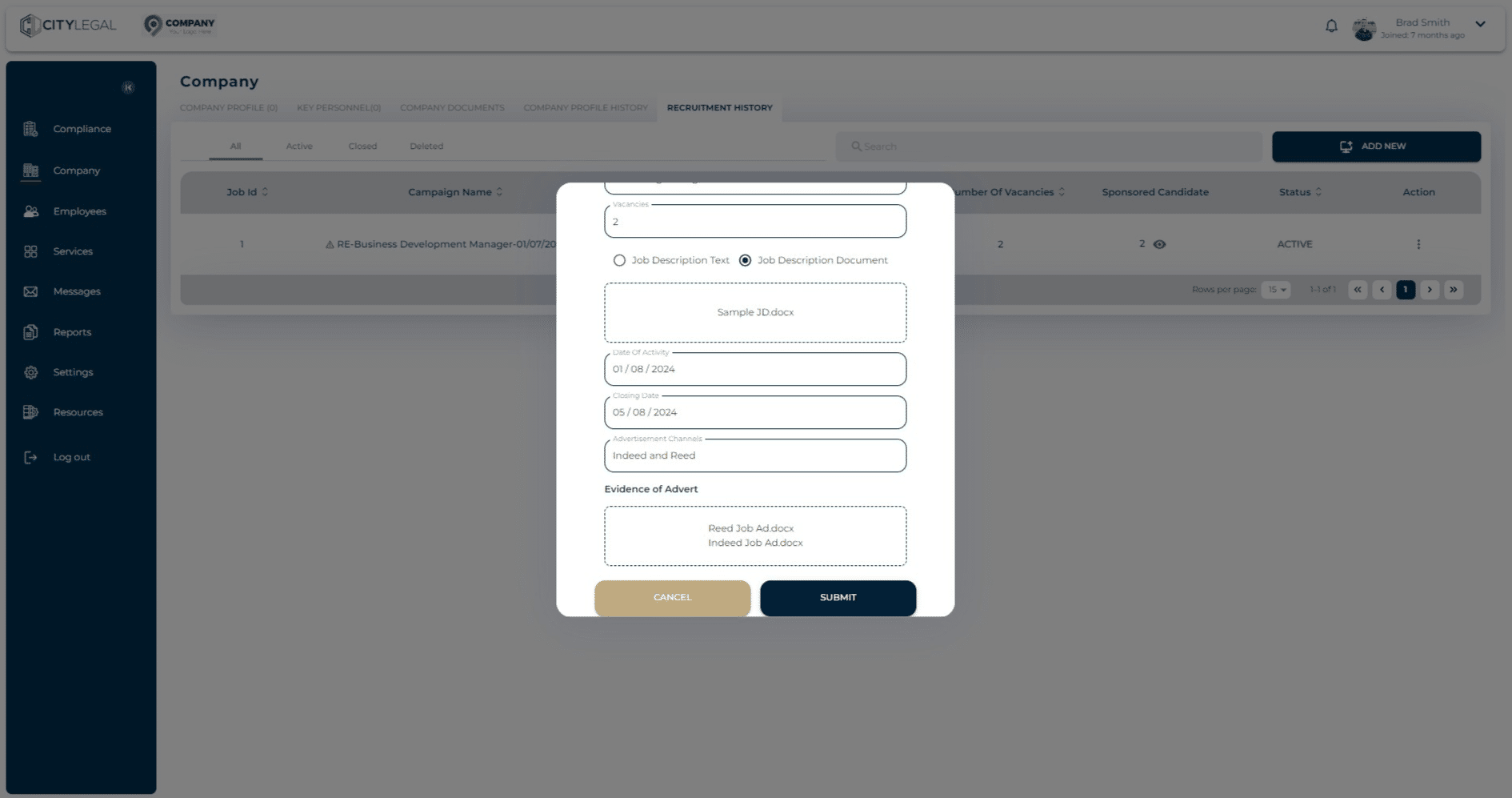
Alternatively, click on 'Recruitment Explanation' for non advertised recruitment and then click 'Next'.
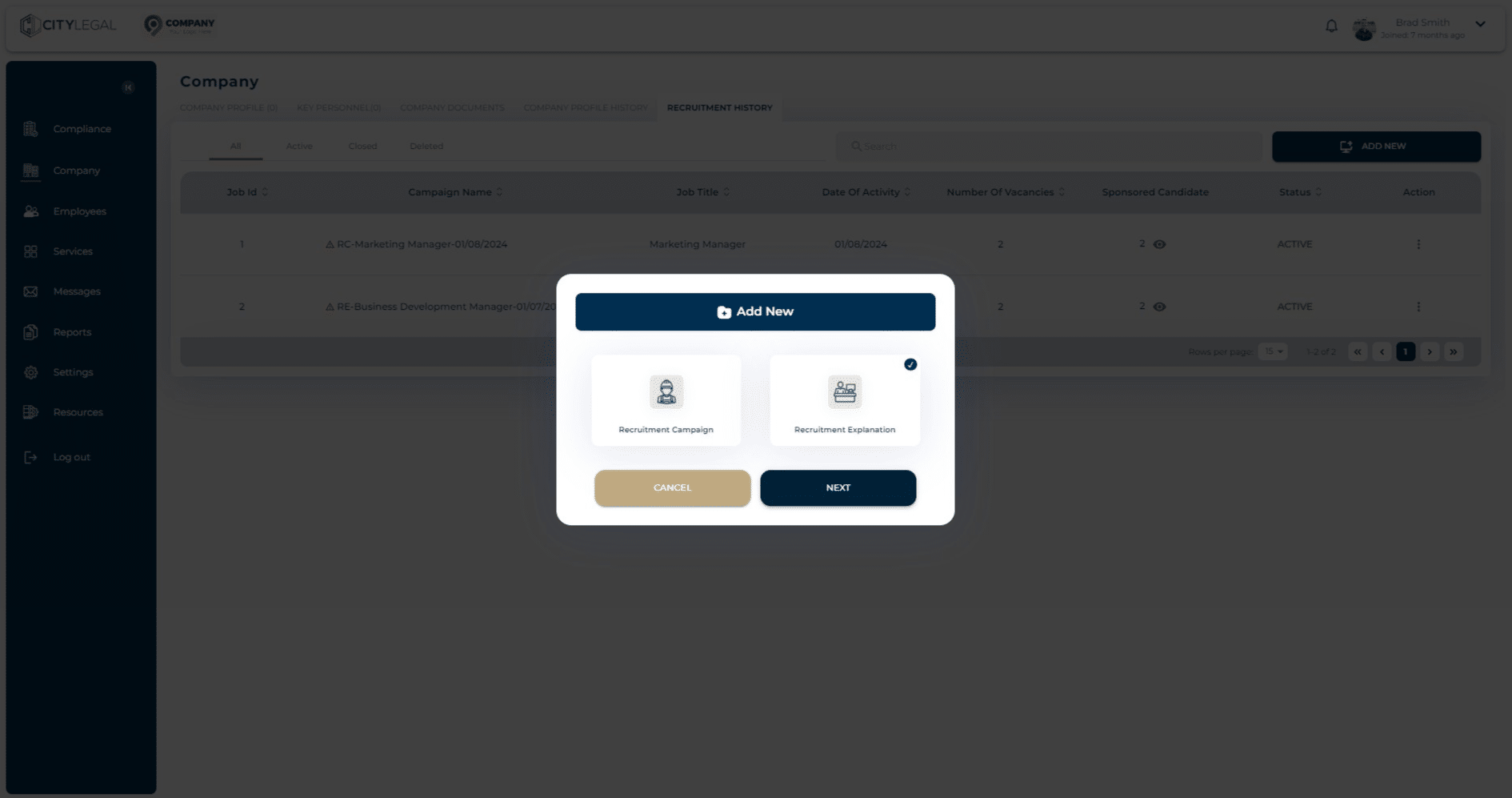
Fill in all the details for the recruitment explanation.
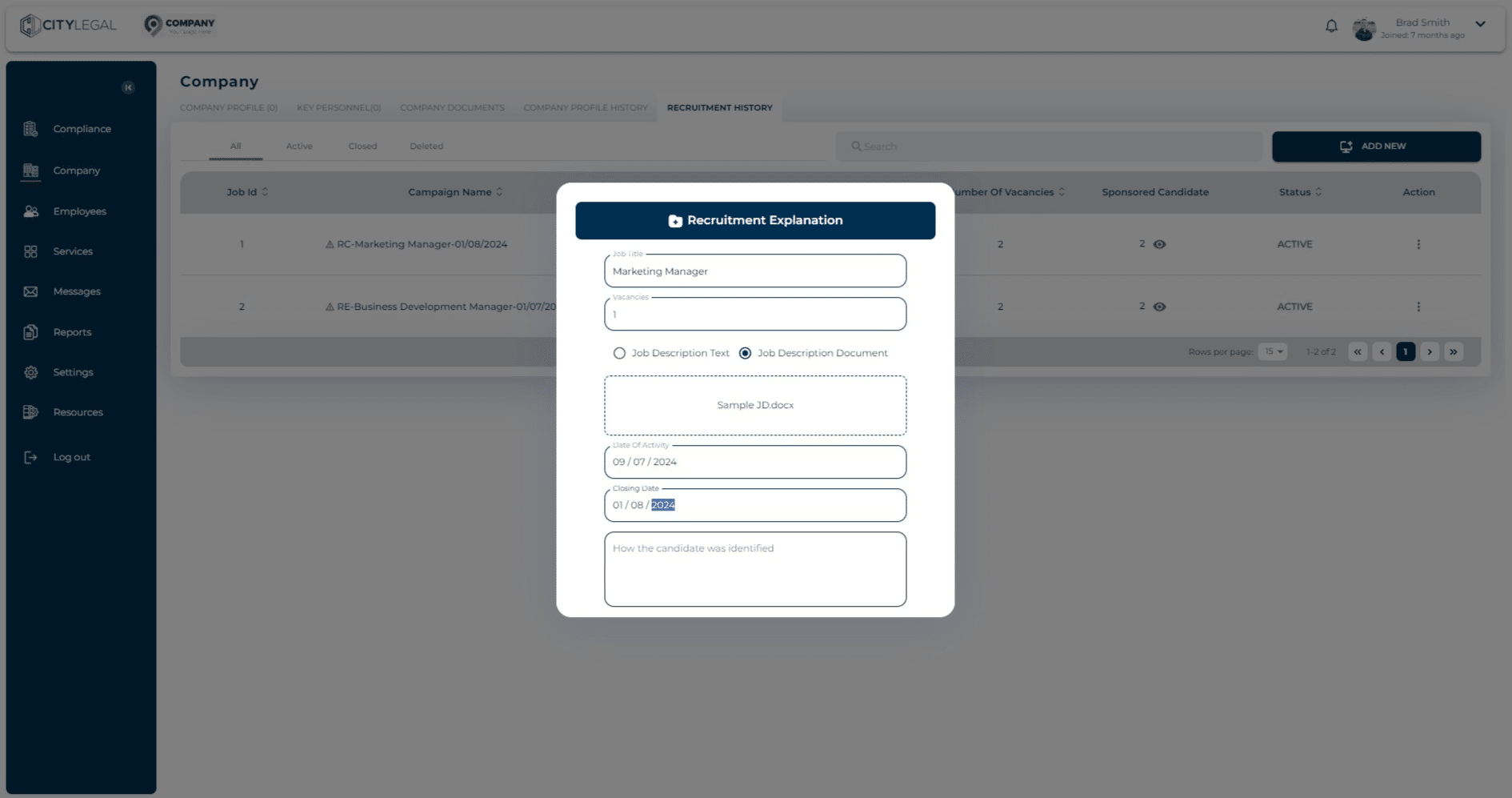
If you did not advertise the role, you must be able to explain (and, where practicable, provide evidence of) how you identified the worker was suitable– examples include, but are not limited to, the following:
• You identified the worker through a university milk round – you should retain evidence of the milk round by uploading a letter from each university, on their headed paper, confirming the milk round, the dates it was conducted, and the method used – for example, presentation and/or interview method.
• the worker was already legally working for you on another immigration route and you established they were suitable for the role through their previous performance.
• the worker applied to you outside of a formal advertising campaign (made a ‘speculative’ application) and you were satisfied (for example, by interviewing them and/or checking references or qualifications) they had the necessary skills and experience to do the job.
• If you recruited a sponsored researcher, you must keep evidence of the competitive process that took place. This could be an advertisement for the grant, a programme for the selection process, the judging criteria, or any other relevant evidence.
This information will help Home the Office establish, where necessary, that the role is a genuine vacancy.
Guidance Documents Please see Section B Page 12 for Skilled Worker Category RLMT not required, which can be accessed here.
Please see here for some examples of explanations and evidence that can be uploaded.
.
Please see here for some examples of explanations and evidence that can be uploaded.](https://assets.guidejar.com/uploads/49051b1f-aa71-4491-9e97-644745fc0b12/oYoDHmIAqJYkPPymyOqU6xZNaL53/8f9185a9-ccae-4bbc-ab34-889c212f1fcb/1722873489517.jpeg)
Click on "submit"
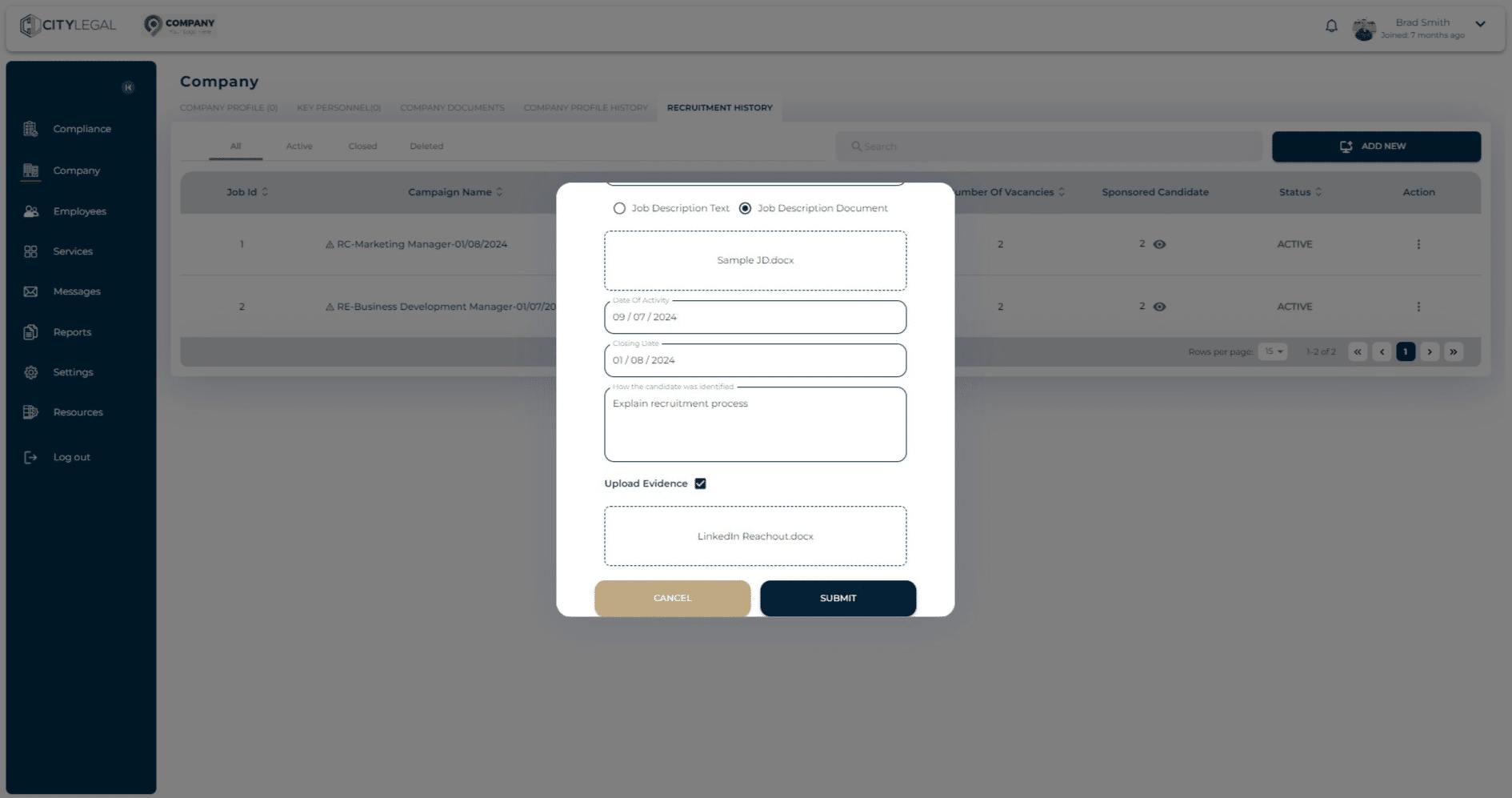
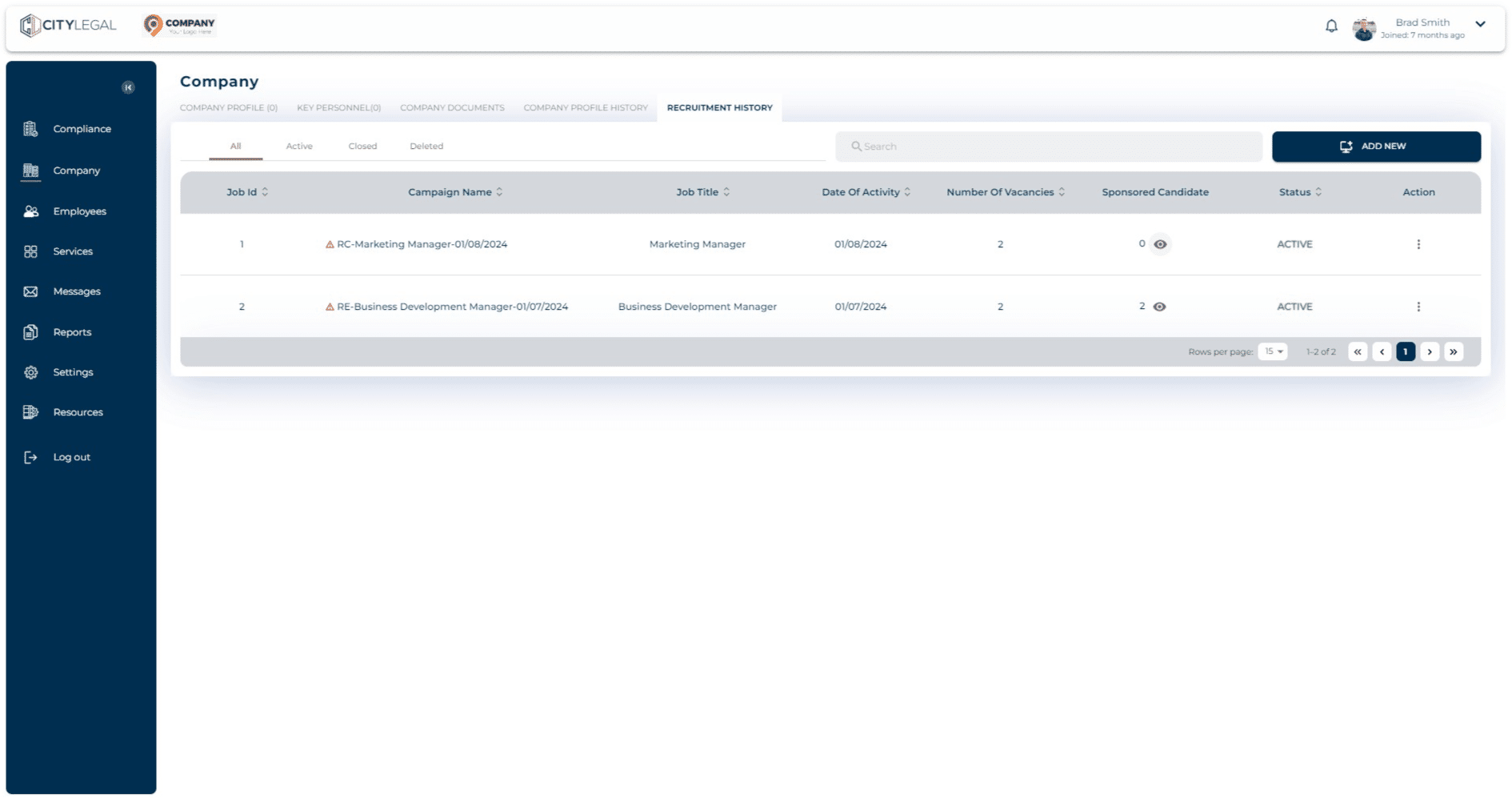
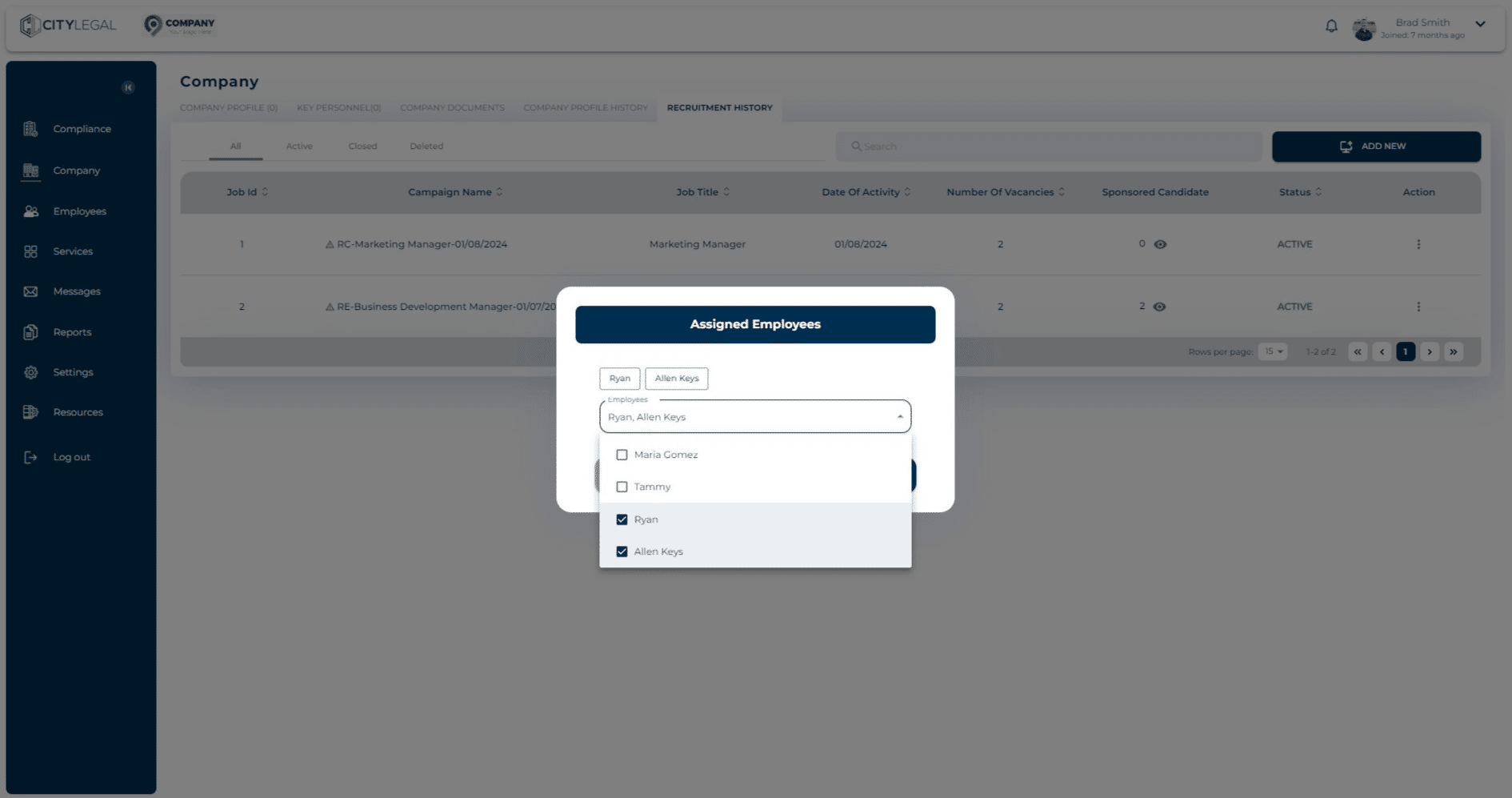
You can assign the campaign to the employees from this section itself by clicking the eye icon.
Here you can assign more employees to the recruitment campaign.
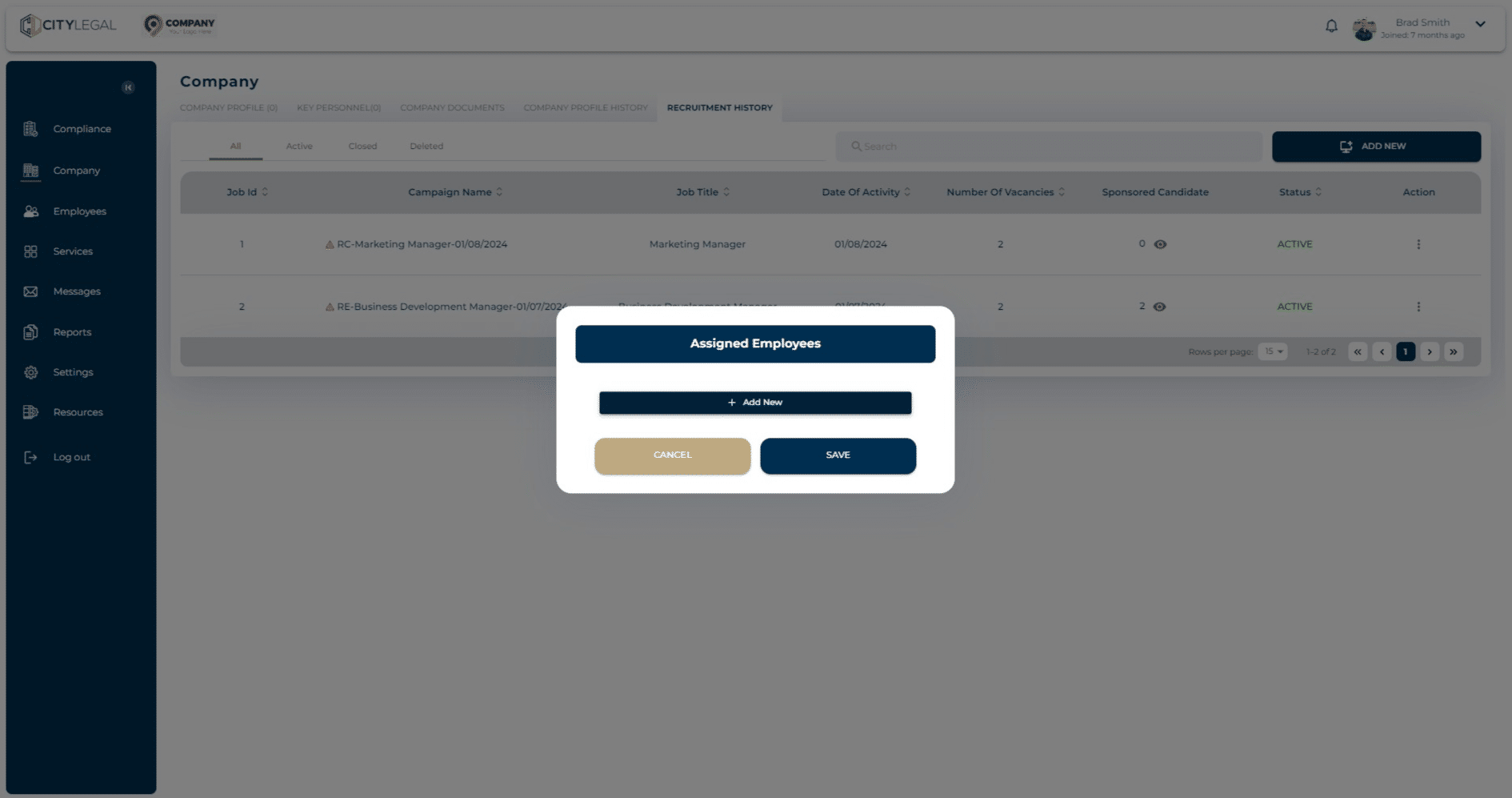
As you can see, there are two empployees assigned to the campaign now.
Click on "Save"
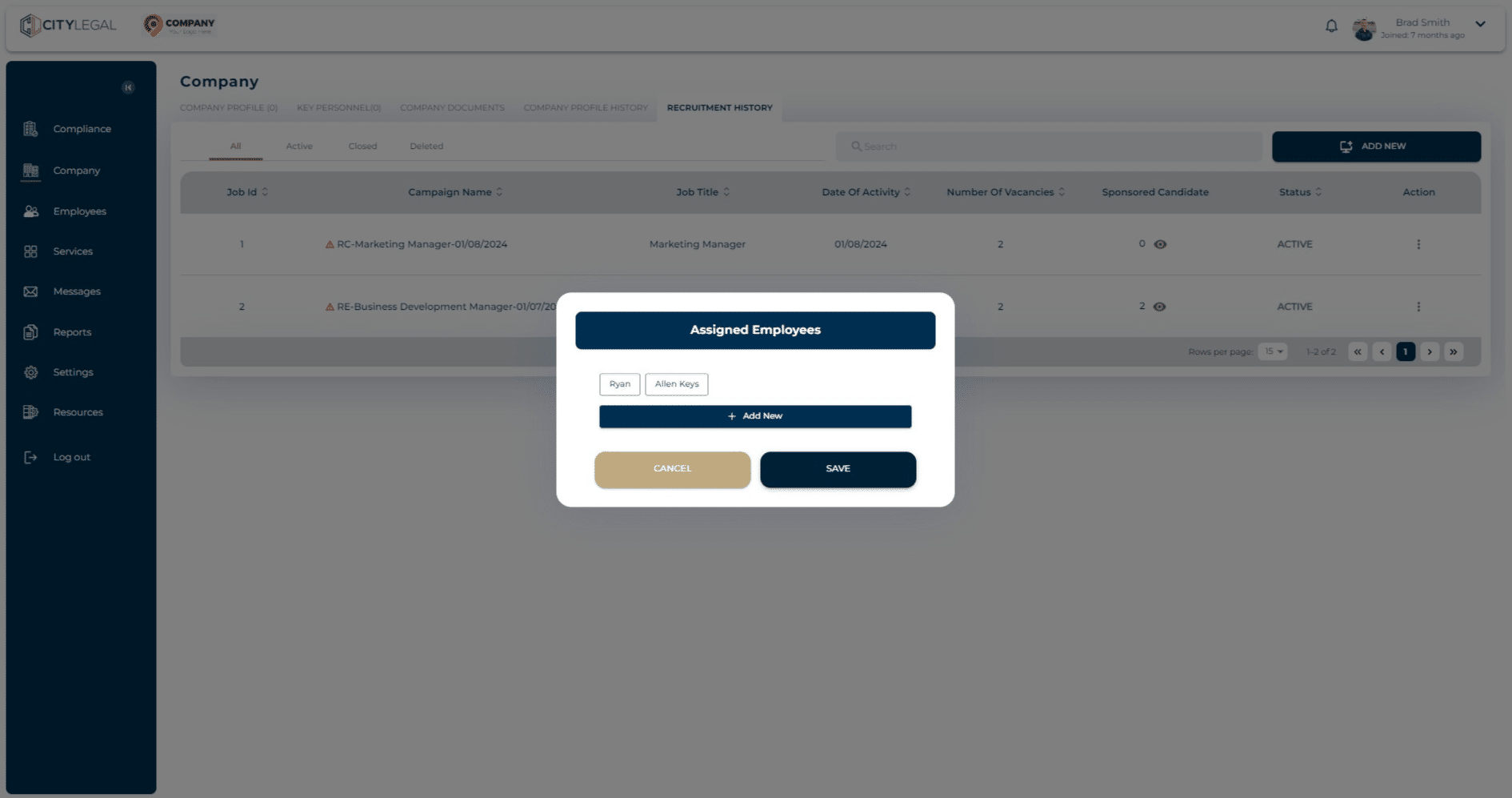
Done 🚀