Assigning same recruitment campaign to multiple employees
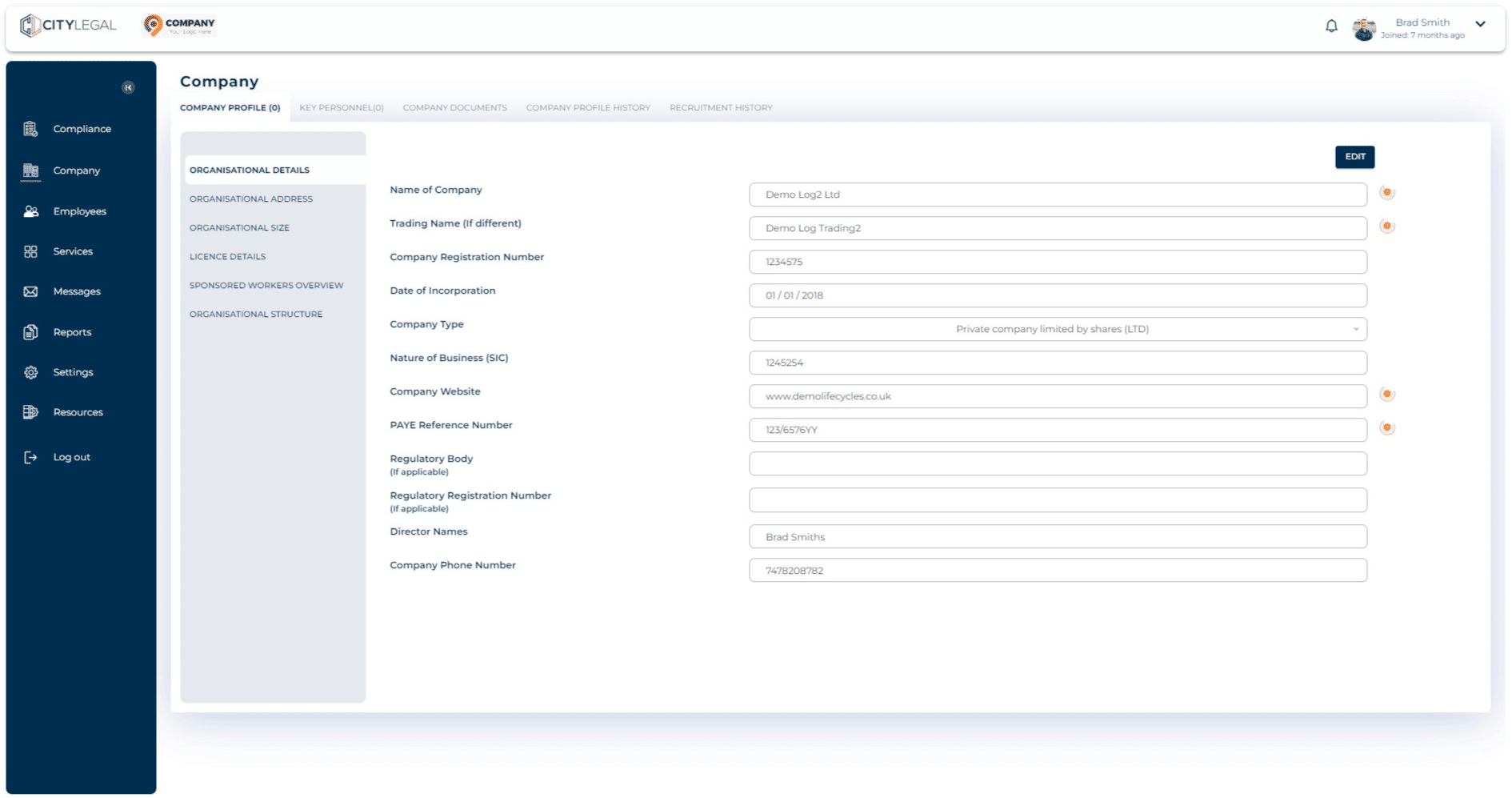
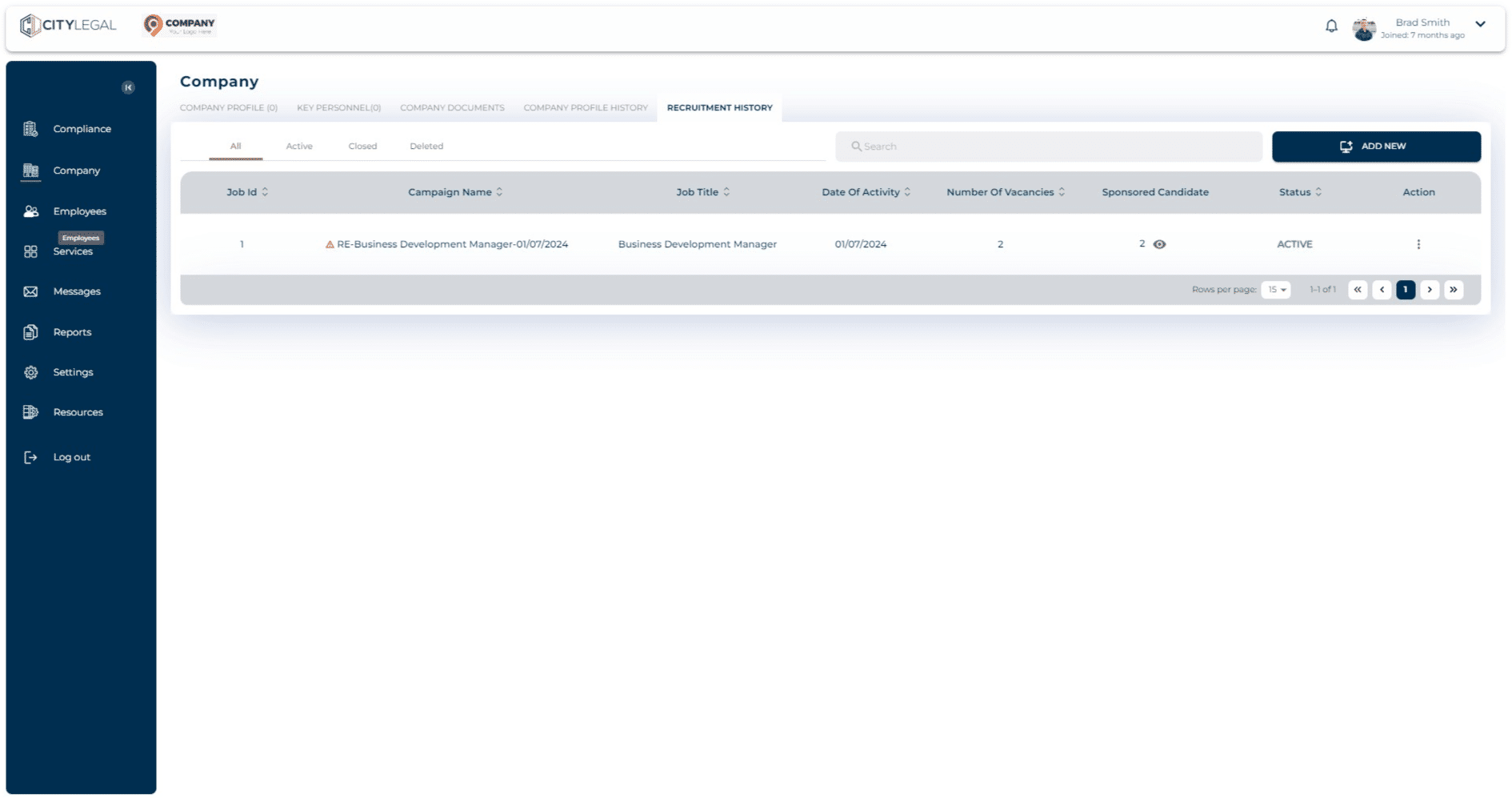
Once the campaign is created, it needs to be assigned if there are more than 1 vacancies. One way to do this is through the 'Company' section in the portal. Go to 'Recruitment History' where all the campaigns are listed.

Click on 'Sponsored Candidate' to see how many employees are assigned in the campaign.
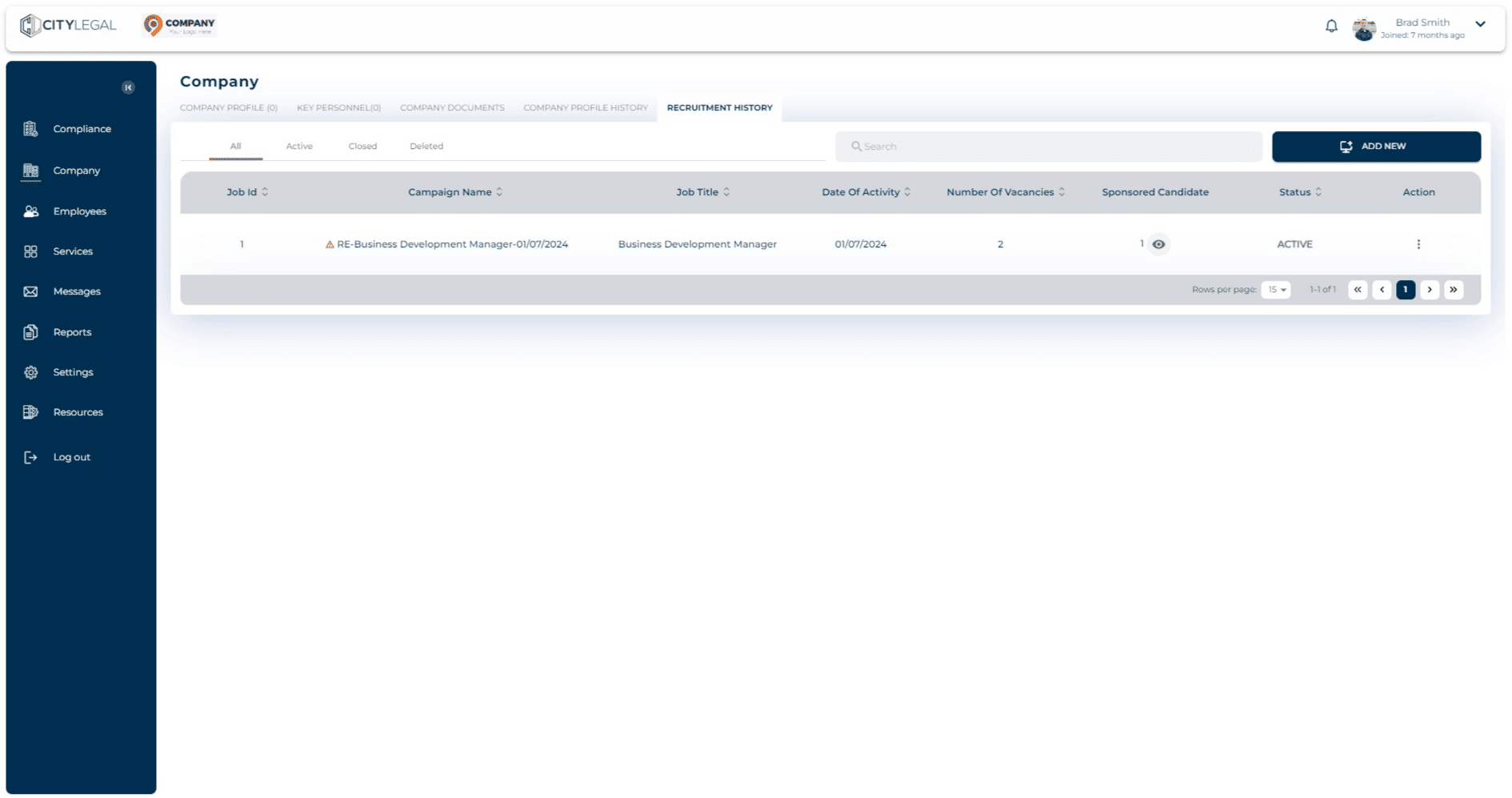
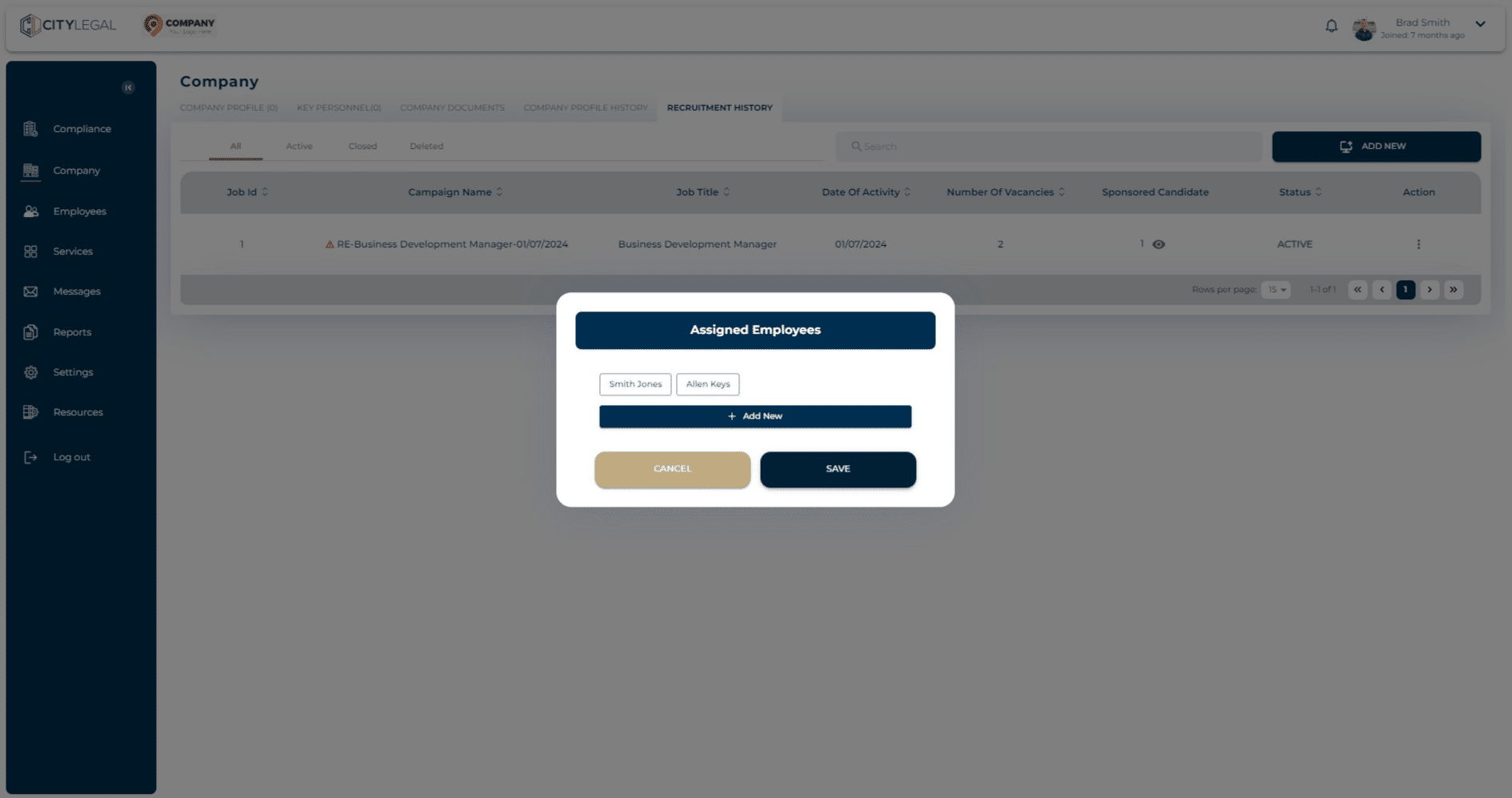
Here you can assign more employees to the recruitment campaign.
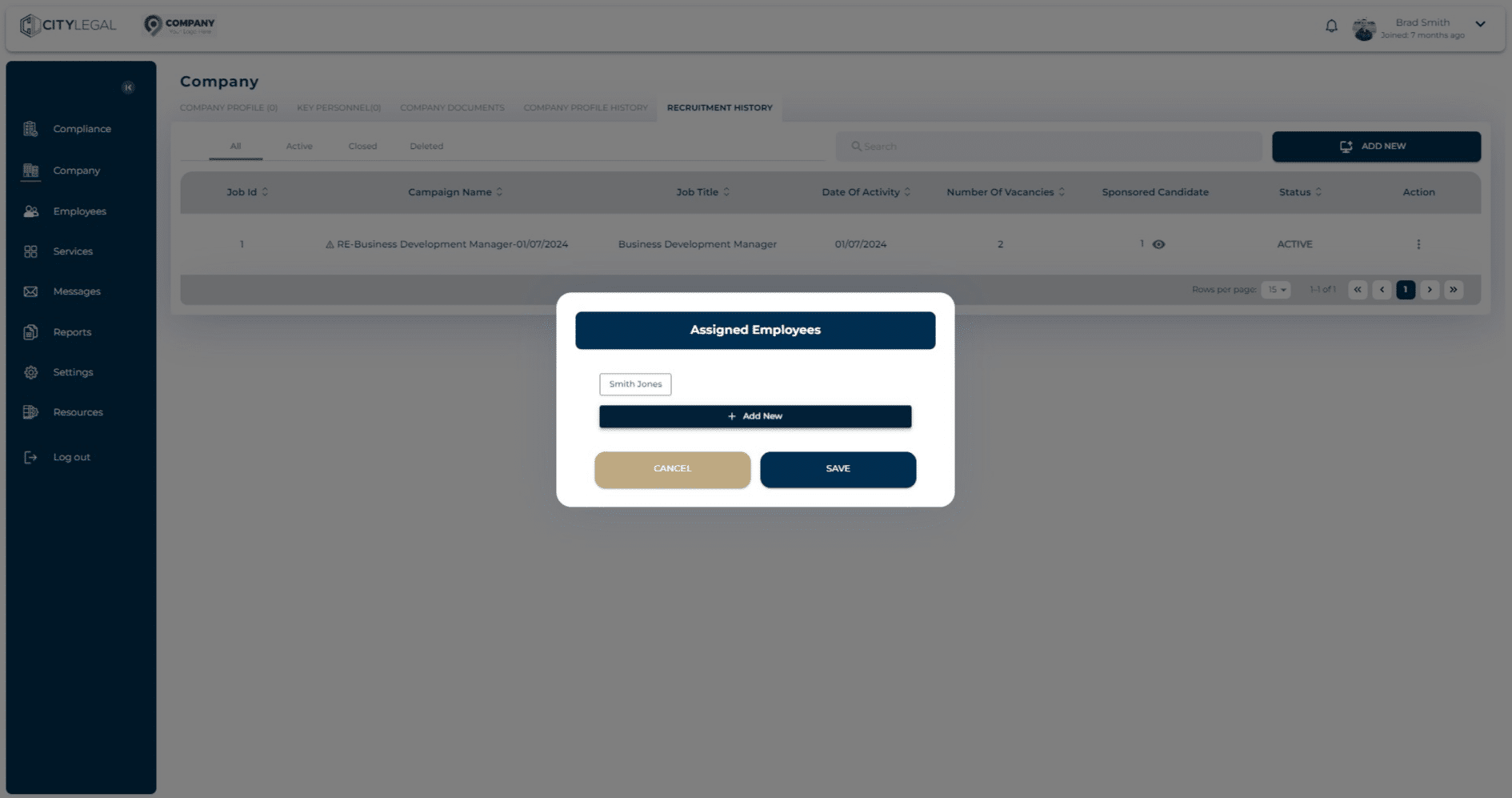
As you can see, there are two empployees assigned to the campaign now.
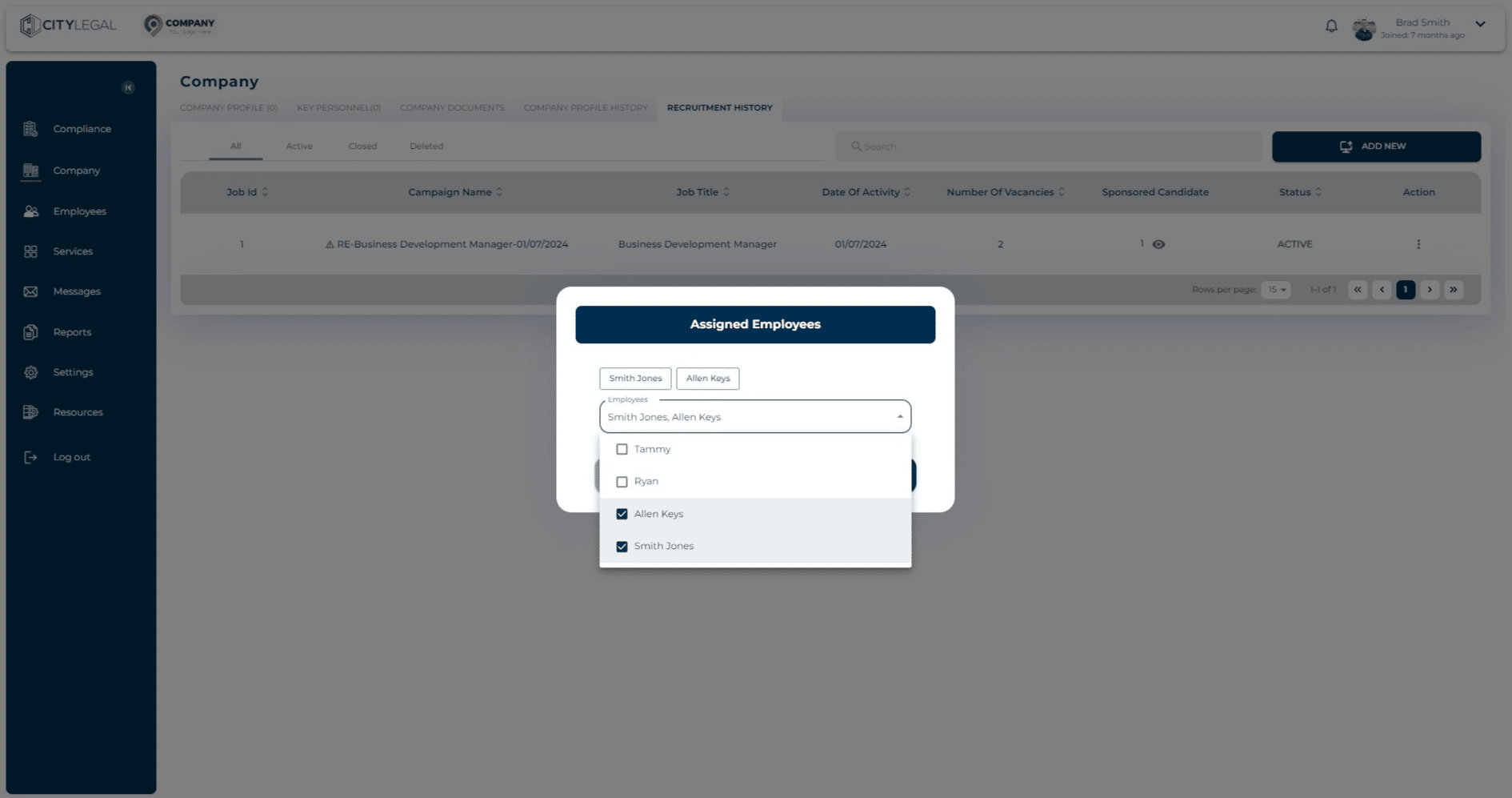
Click on "Save"
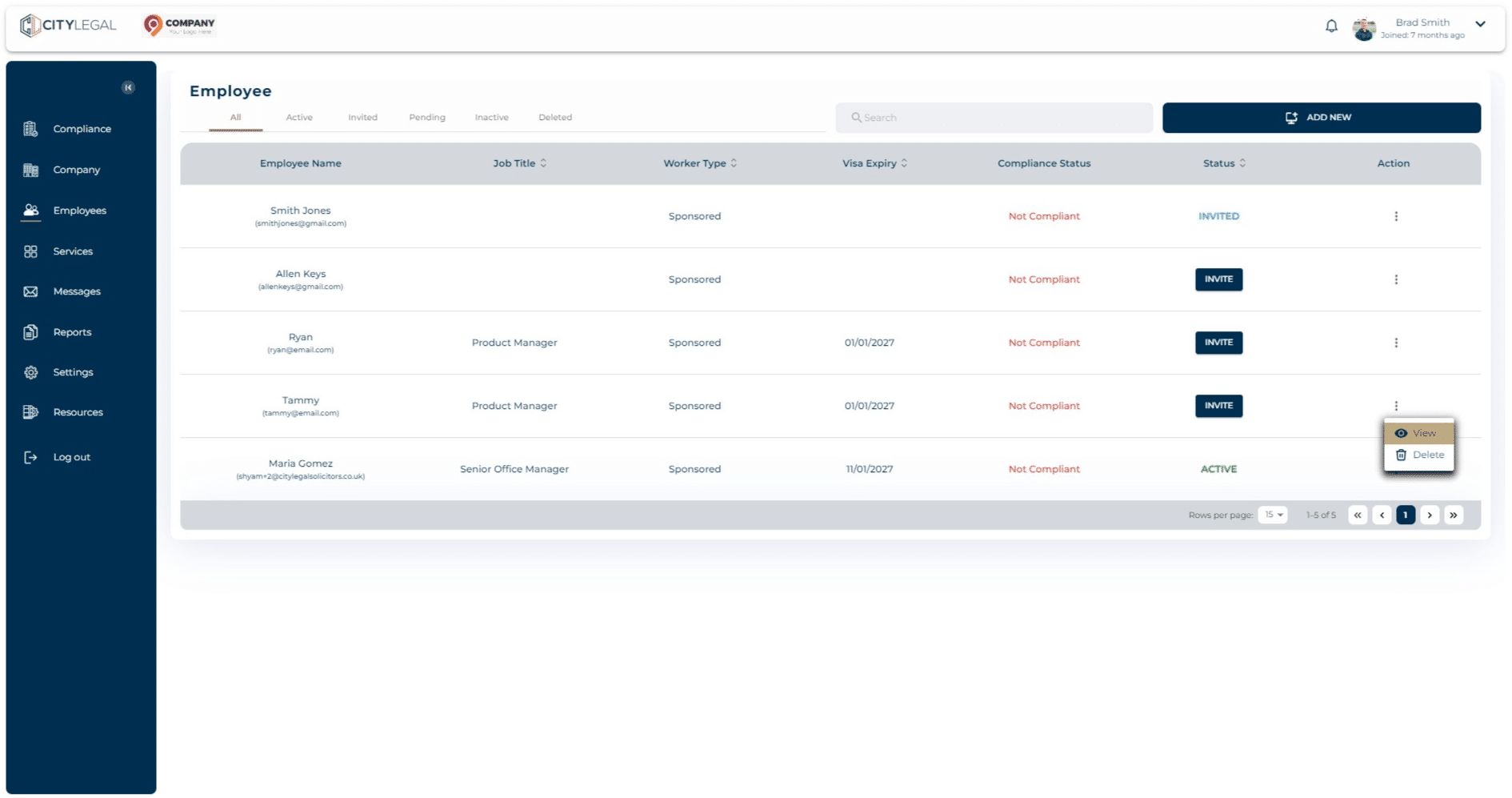
Another way of assigning the same recruitment campaign to multiple employees is through the 'Employees' section.
Click three dots next to the emploee you want to put on the recruitment campaign and click 'View' from the options.
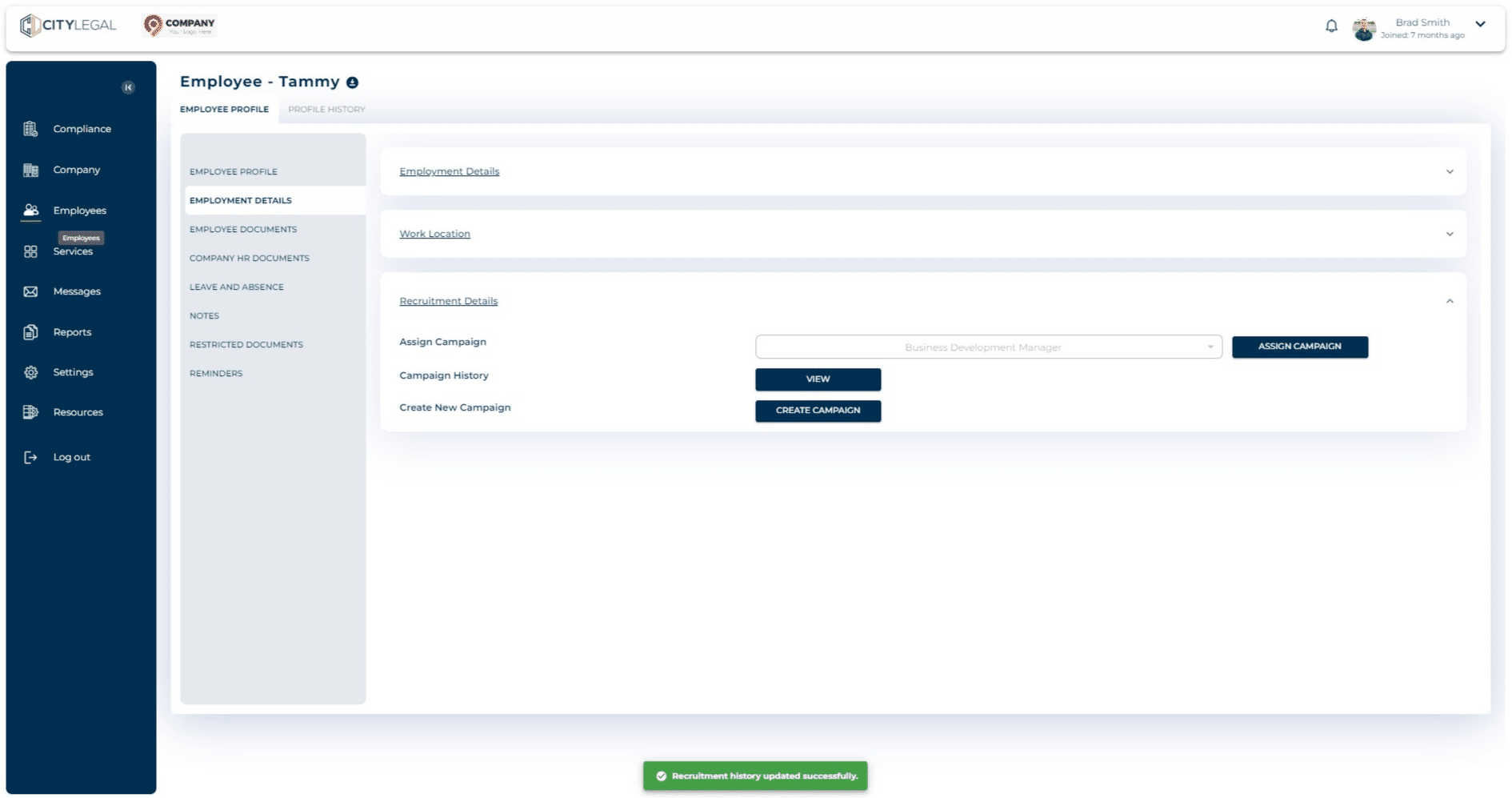
Click on "Employment Details"
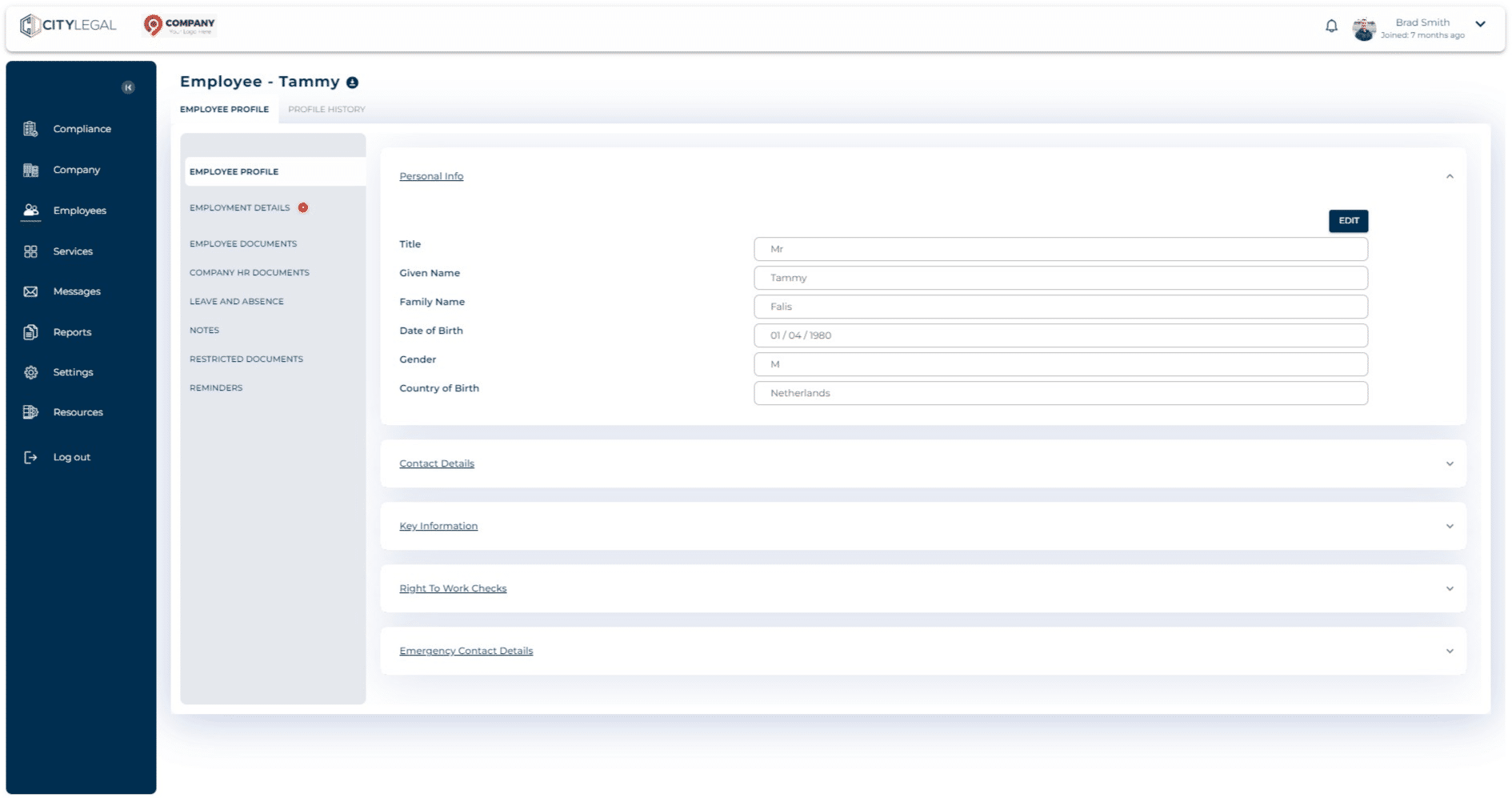
Click on "Recruitment Details"
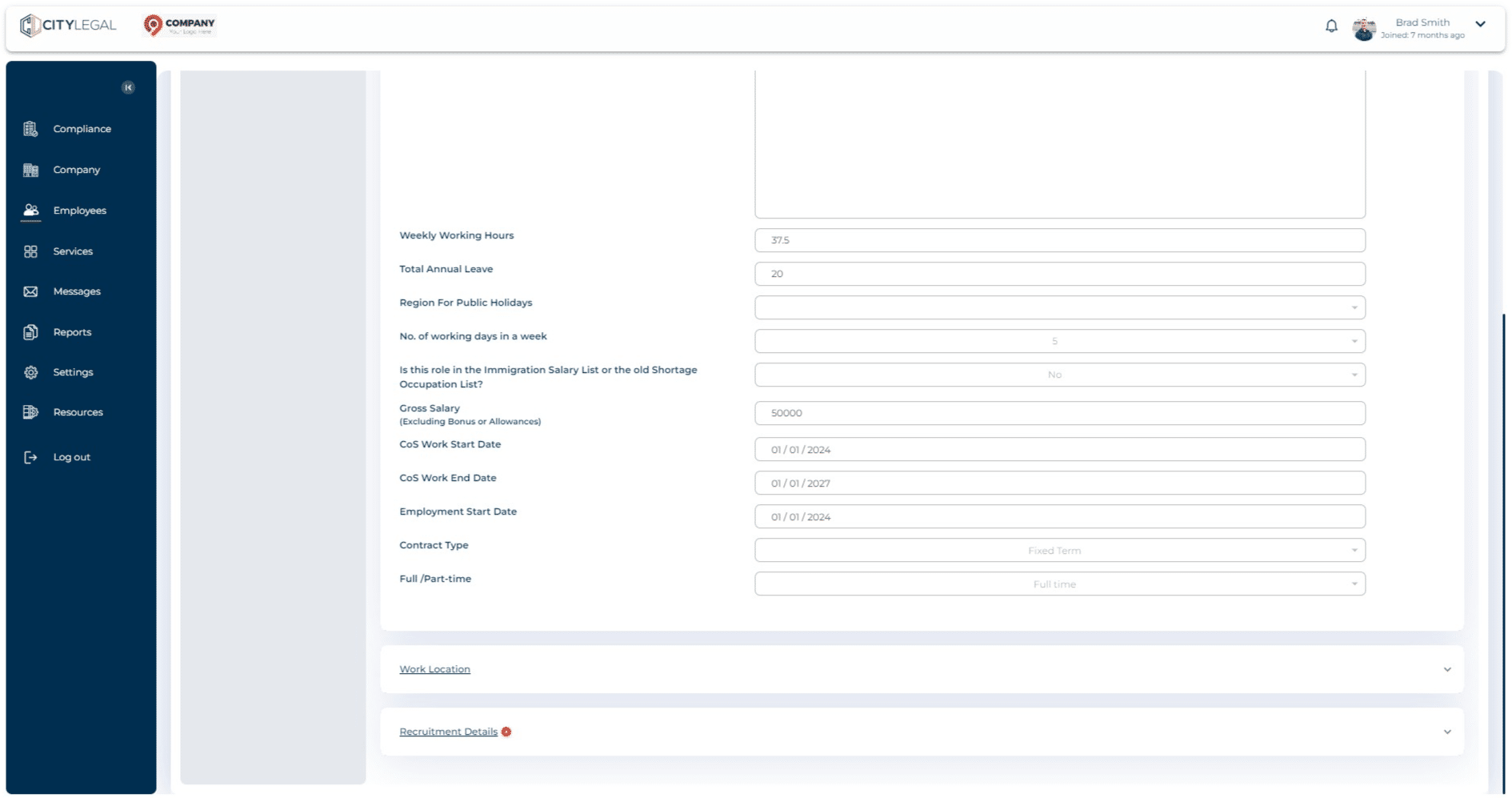
Here, click on "Assign Campaign" which will give the campaign options.
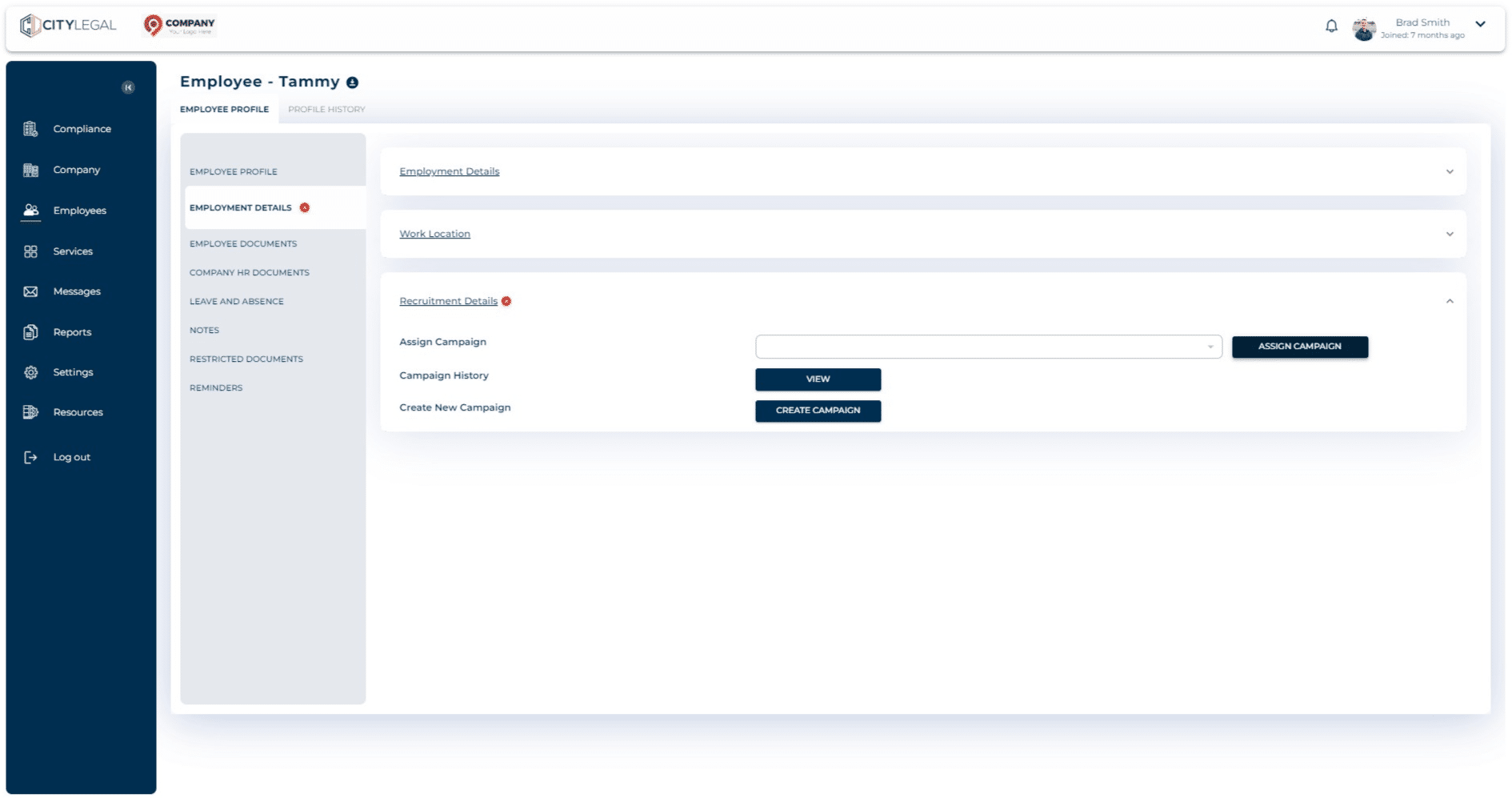
From the drop down select "Business Development Manager" and click save.
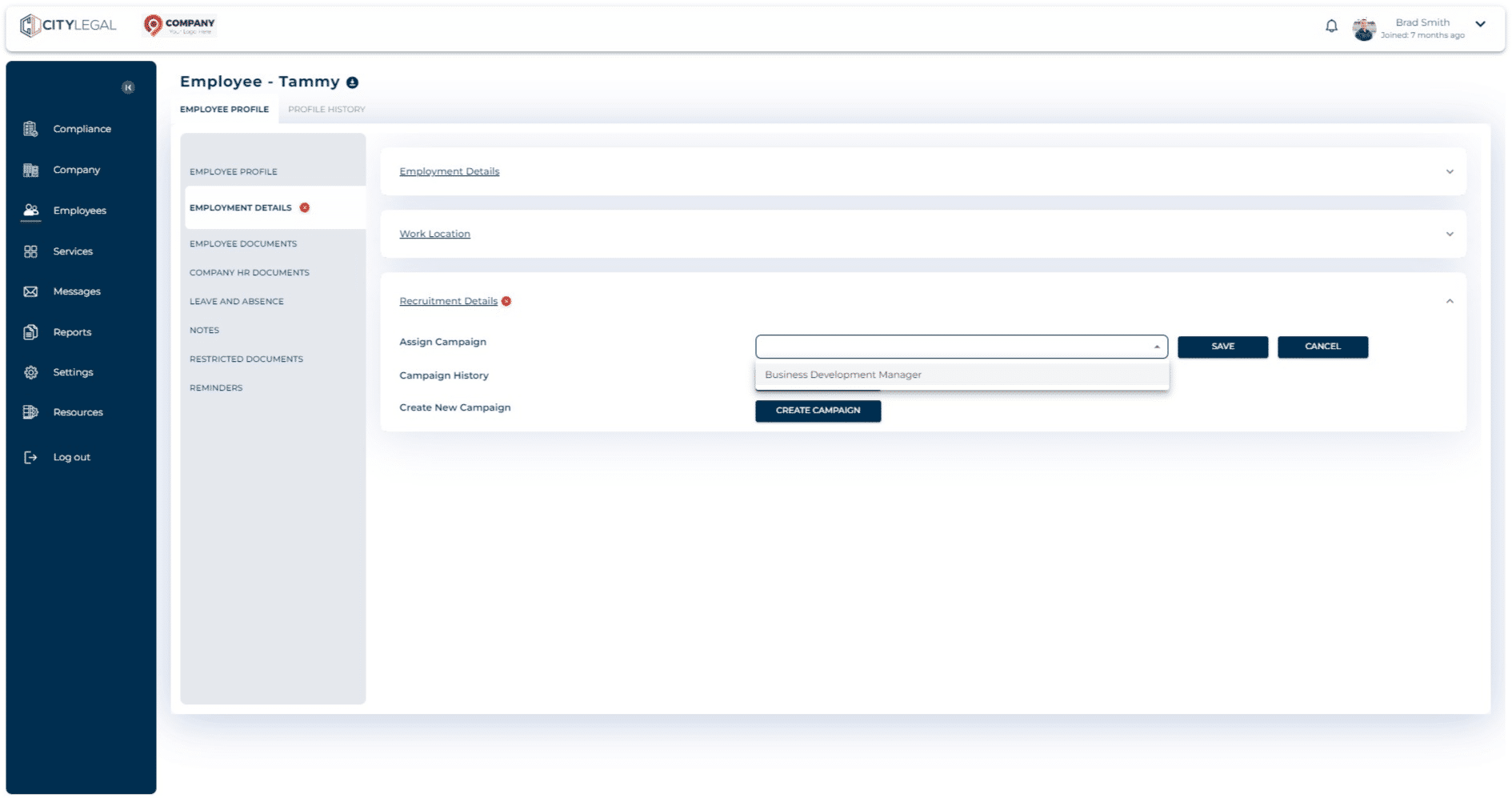
This will assign the recruitment campaign to the employees.